One venue, several ticket types, a single maximum
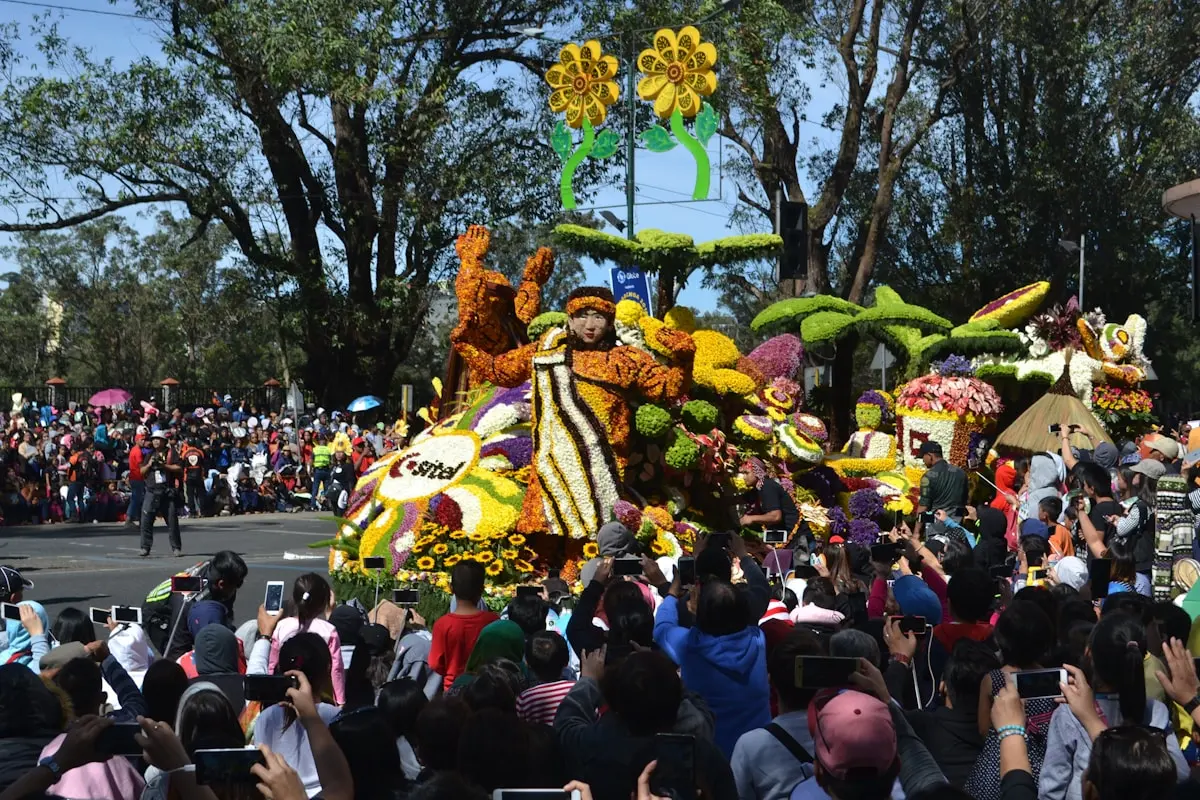
Imagine you're running a parade weekend with room for 500 visitors. You sell adult tickets, child tickets, an evening pass for the party tent and a discounted combo ticket. Four ticket types — but the grounds have just one limit. How sales will split across those types is anyone's guess.
With a separate capacity per ticket type you're forced to guess: 300 adults, 150 children, 50 combos? Guess wrong and one type shows "sold out" while another still has room — or worse, together you sell more than the venue can hold.
Capacity groups solve this. You create one group with one shared maximum and link multiple ticket types to it. Every sale — whichever type — counts down the same counter. Once the 500 places are gone, sales close for all types in the group at once.
Setting up a capacity group
- In the management panel, open your event and go to the Ticket types tab.
- Scroll to the Capacity groups section and click Add capacity group.
- Give the group a recognisable name (for example "Regular tickets") and set the shared capacity.
- Then open the ticket types that should draw from this pool and pick the new group under Capacity group.
Done. From now on the group list shows live how many places are taken, how many remain and how many ticket types are linked.
A ticket type without a group keeps working exactly as before: with its own capacity, or unlimited if you leave the field empty. You can freely mix groups and standalone types within one event — think of a separate "Grandstand" group next to the regular tickets.
A sub-limit within the group
Sometimes you want to cap one type inside the shared pool. For example: the party-tent ticket may sell at most 150 times, within the 500 total places. Simply fill in an own capacity on that ticket type. The stricter of the two limits always applies. Leave the field empty and only the group limit counts — that's the default.
Show or hide "X places left" — per group
Each capacity group has a Show availability toggle that controls whether visitors see the remaining count. This setting overrides the event-level preference: happily show "12 places left" on your regular tickets to create urgency, while keeping the number hidden for the grandstand.
Good to know: the toggle only changes the display. The capacity itself is always enforced — even with the number hidden, the group can never be oversold.
What your visitors see
On your sales page, visitors mostly notice the convenience:
- Types in the same group show the same remaining count, because they draw from the same pool.
- While selecting, the remaining space counts down jointly: pick 3 adult and 2 child tickets with 5 places left, and neither type lets you add more.
- When the group is full, every linked type shows Sold out — and visitors can join the waiting list, even for types without an own capacity.
Never oversold, even at peak times
At a busy on-sale, dozens of buyers check out simultaneously. MijnEvent guards the group capacity on the server with a locked counter per group: concurrent orders are processed one after another, and an order that would exceed the maximum is refused with a clear message. Also smart: an order mixing several types from one group is checked as a whole — the maximum can't be dodged by spreading tickets across types.
If a payment fails or expires, or you issue a refund, the reserved space automatically returns to the group — and the waiting list gets its chance.
Deleting a group? No worries
Delete a capacity group and its linked ticket types simply remain. They fall back to their own capacity — or unlimited, if none is set. Your sales keep running either way.
In short
Capacity groups give multiple ticket types one shared maximum. You no longer have to predict the split, the counter guards the total, and visitors always see an accurate offer. Create a group, link your types, and the rest takes care of itself — including sold-out handling, the waiting list and oversell protection.