
No matter how well your advance sales go, there are always people at the entrance without a ticket. That used to mean improvising: a separate cash box next to the scanner and a puzzle afterwards to make the numbers add up. With the point of sale in the check-in app you sell those tickets from the same iPhone or iPad you scan with — and the sale is recorded properly in your administration, instantly.
Where to find it
The point of sale lives on the inspector side of the app. Open an event the way you would for scanning and tap Kassa at the bottom of the screen. You don't need to enter a scan location first; the register works independently of the scanner.
It is available to every inspector assigned to the event — the same access that is required for scanning.
Step 1: pick the tickets
The register shows every active ticket type for your event, each with its current price and how many are still available. Availability is live: whatever the web shop is still allowed to sell at that moment, the register can sell too — sold out is sold out, at the door as well.
Use the plus and minus buttons to set quantities. You can combine multiple ticket types in a single sale — say two weekend tickets and a day ticket for one group. The ticket count and the running total update at the bottom.
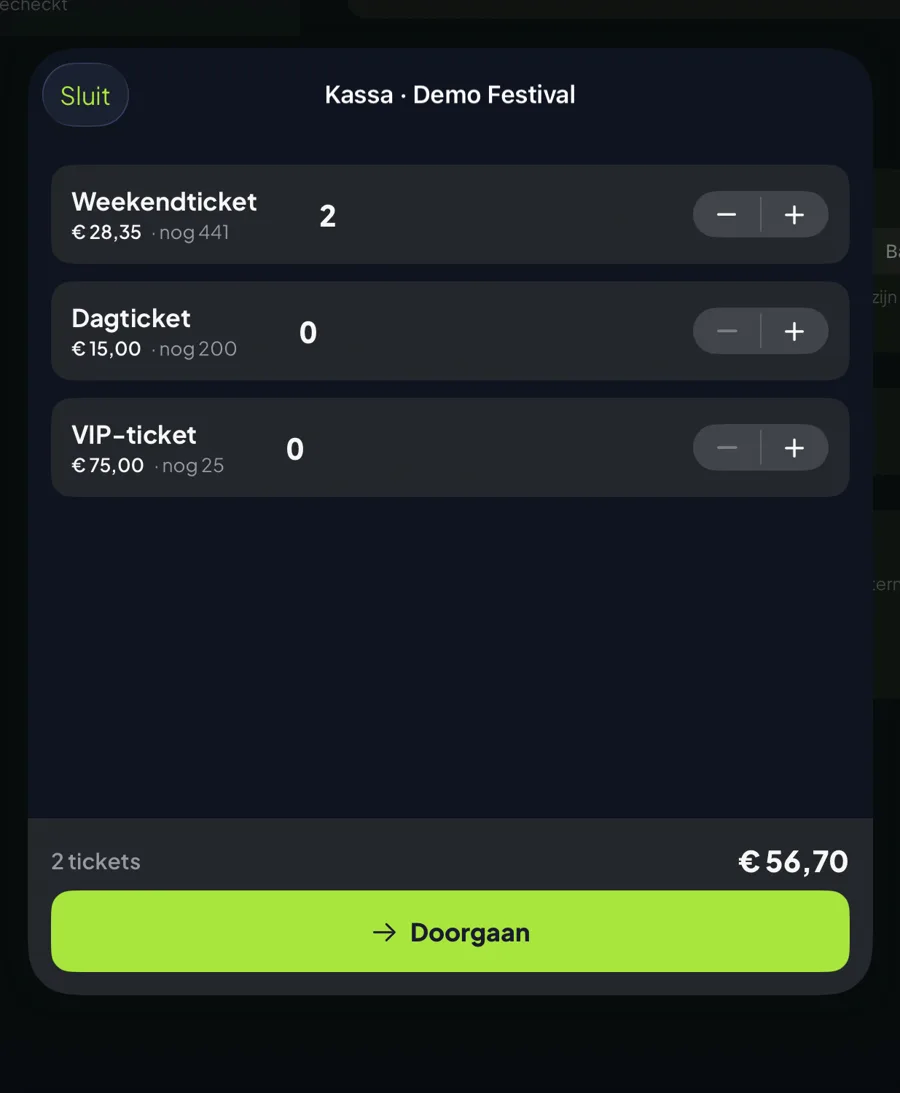
Tap Doorgaan (continue) once the order is complete.
Step 2: take payment — cash or card
You now see the total amount in large type. By default the payment itself happens outside the app: the visitor pays in cash or on the card terminal you have at the entrance, and the button only records how they paid. Want the card payment to actually run through the app — with no separate terminal? That's possible with Mollie Tap to Pay, further down this article.
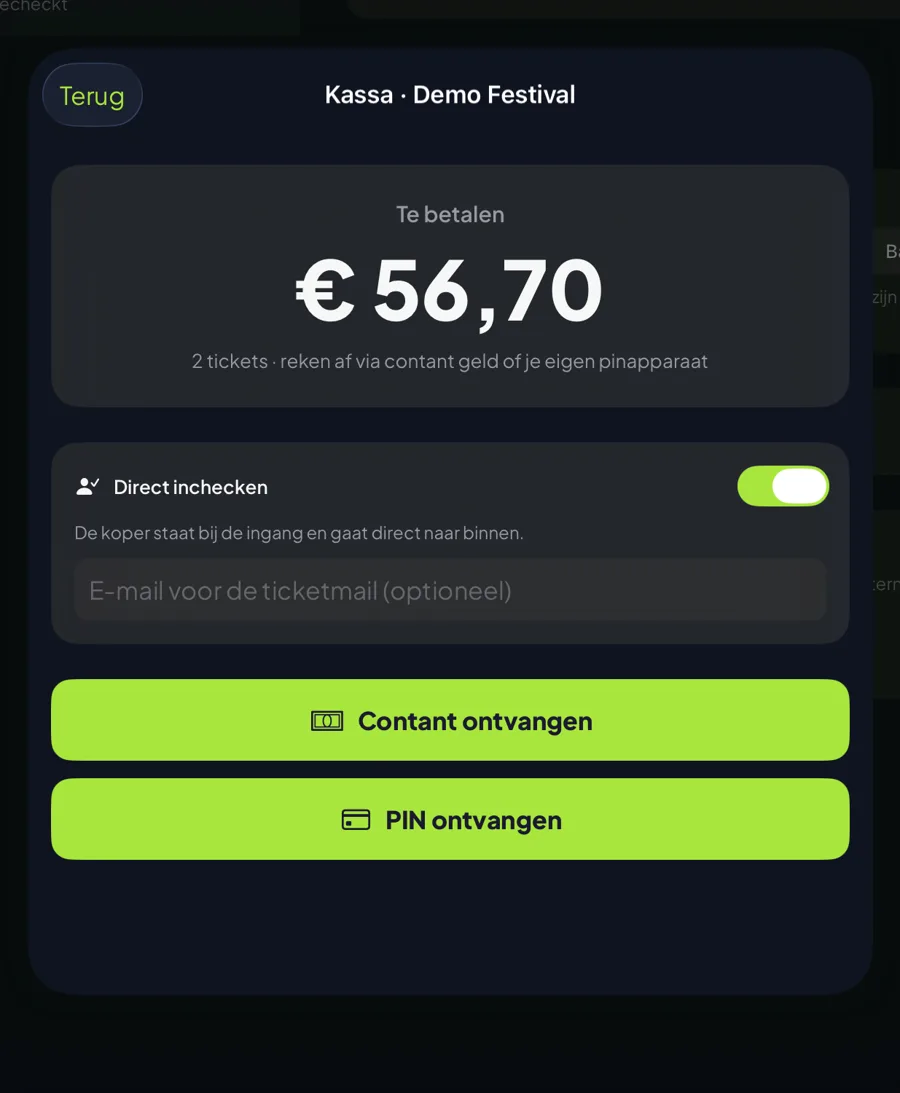
Two options on this screen:
- Instant check-in is on by default: the buyer is already standing at the entrance and walks straight in — no scanning needed. Switch it off and the tickets simply remain scannable (useful when someone buys for somebody else or returns later).
- Email address (optional): fill it in and the buyer receives the tickets with QR codes by email — the same ticket confirmation as a web shop order.
Received the cash or the terminal confirmation? Tap Contant ontvangen (cash received) or PIN ontvangen (card received) and confirm. Only then are the tickets actually created.
Step 3: the receipt
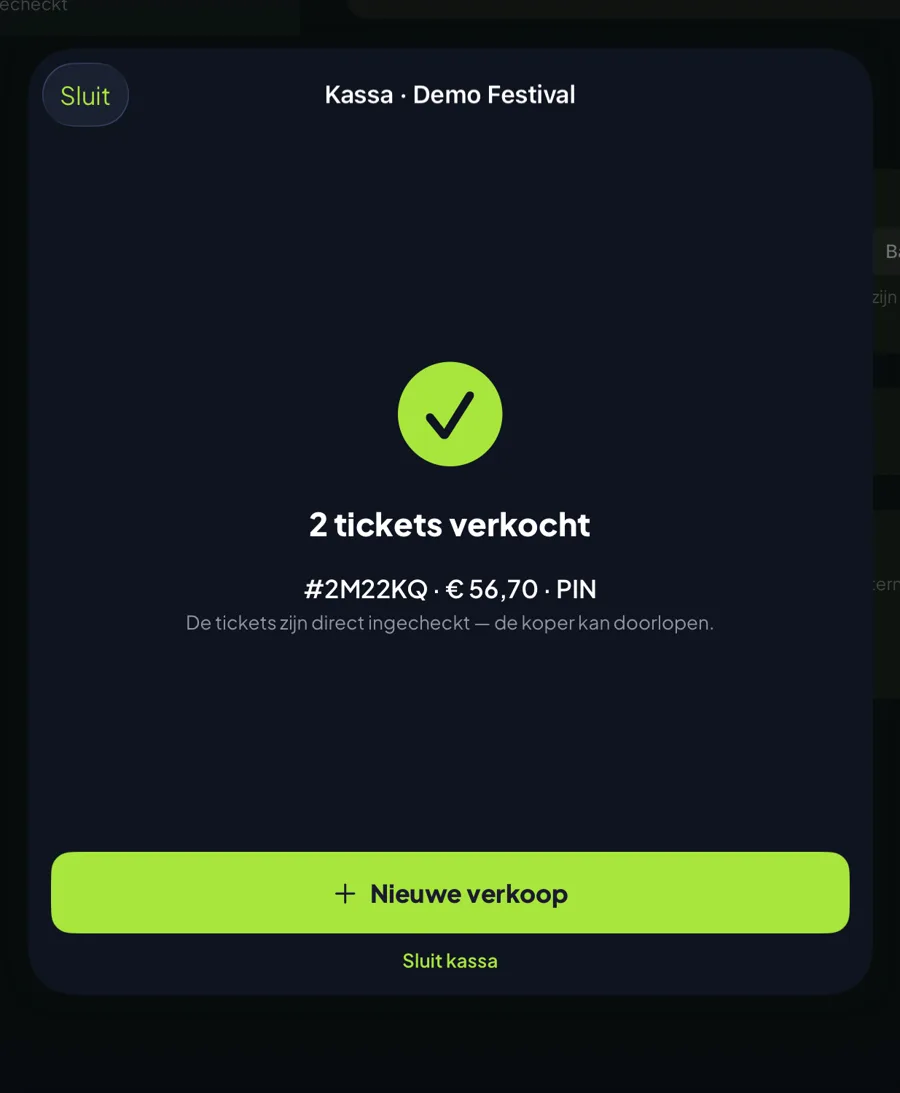
After completing the sale you see the confirmation: order number, amount and payment method. Nieuwe verkoop (new sale) puts you straight back at step 1 for the next visitor, with the counters and availability refreshed.
Card payments at the door with your iPhone — Mollie Tap to Pay
Cash is handy, but most visitors want to pay by card. That card payment at the door can now be a real transaction — with no separate card reader. On the payment screen, next to Contant ontvangen (cash received), there's a Pin via terminal (card via terminal) button. Tap it, let the visitor hold their card or phone against the device, and the receipt appears automatically once the payment comes through.
What is Mollie Tap to Pay? Tap to Pay on iPhone turns your phone itself into a contactless payment terminal. You install the free Mollie app on your iPhone, and the NFC chip that normally reads a card now reads your visitor's bank card, phone or smartwatch. No separate device, no cables, no hardware rental contract — your iPhone is the card reader.
Prefer a separate physical card reader? That works too: purchase a Tap Terminal from Mollie — a compact, fixed payment device that you pair with MijnEvent using a pairing code. You do that in your admin under Settings → Payment terminals: tap "Pair new terminal", enter the code on the device and it shows up in the register right away. Handy at a busy entrance: the scanning phone stays free for scanning while the visitor pays on the separate device. For the register it works exactly the same — you simply pick which terminal receives the payment. And because the terminal is tied to your own Mollie account, it's a fully-fledged payment device: you can just as well use it outside the MijnEvent app, for the bar or merchandise for instance.
How it works with MijnEvent. The payment runs through your own Mollie account, the one you connected to MijnEvent via Mollie Connect during onboarding. So the money lands directly in your Mollie account, just like an online sale — MijnEvent only takes the same fixed platform fee per ticket. In the register you pick which terminal receives the payment (with just one, that happens automatically). No terminal connected yet? The register falls back neatly to the manual PIN ontvangen registration for your own separate device.
The benefits at a glance:
- No extra hardware — your iPhone is the terminal, the Mollie app is free.
- Settled instantly — a real transaction that lands in your own Mollie account right away, not an after-the-fact note.
- Contactless — bank card, phone or smartwatch: the visitor taps and walks in.
- One smooth flow — you start the sale in the MijnEvent app, the visitor taps on the terminal, and the receipt appears as soon as the payment comes through.
Here's how Tap to Pay on iPhone works in practice:
You activate Tap to Pay once in the Mollie app; after that your iPhone shows up as a terminal in the register automatically.
What lands in your administration?
A door sale is a full order, not an after-the-fact note:
- The order appears in your admin as paid, with the real amount and pos as its source.
- The payment method (cash or card) is stored on the order, so you can reconcile the till afterwards: filter on door sales and you see what came in per payment method.
- The sale counts towards revenue, dashboards and statistics, and web shop availability updates live — shared capacity between ticket types is guarded as well.
- With instant check-in the check-in is recorded in the name of the inspector who sold the tickets, including the register location — just like a regular scan.
Tips for the event night
- iPad on a stand? Combine the register with the scanner's kiosk mode: one station for scanning and selling at the entrance.
- Change: the app doesn't handle money, so bring a float if you accept cash.
- Free tickets (press, sponsors, artists) don't belong in the register but on the guest list in the admin — that creates tickets without a payment.
Short queues, a till that balances, and never again "card only, sorry" to a visitor holding cash.