# Organise your ticket shop — event groups, prices after the click and a notice above a ticket group

 Organise your ticket shop

# Many events, many tickets, and still a calm shop

A festival weekend with three days, a theatre season with twelve shows, an event with tickets, camping and parking: before you know it your ticket shop is one long row of cards with prices. With event groups, collapsed ticket groups and a notice in the right place, visitors choose in steps and only see what matters at that moment.

 [How it works](#how-title) [All features](https://mijnevent.nl/en/features) 

- 1Bundle events into one tile

    Three festival days become one tile on your home page. Behind it the visitor picks a day.
- 2Split the tickets into groups

    Day tickets open, camping and extras collapsed. Whoever needs them opens them.
- 3Put the warning where it gets read

    Above the group, in the order summary and on the ticket itself.

  How it works

## From a long list to a shop in layers

You set up everything below yourself, in your dashboard. Your existing events and tickets do not change.

  1

### Create an event group and attach events to it

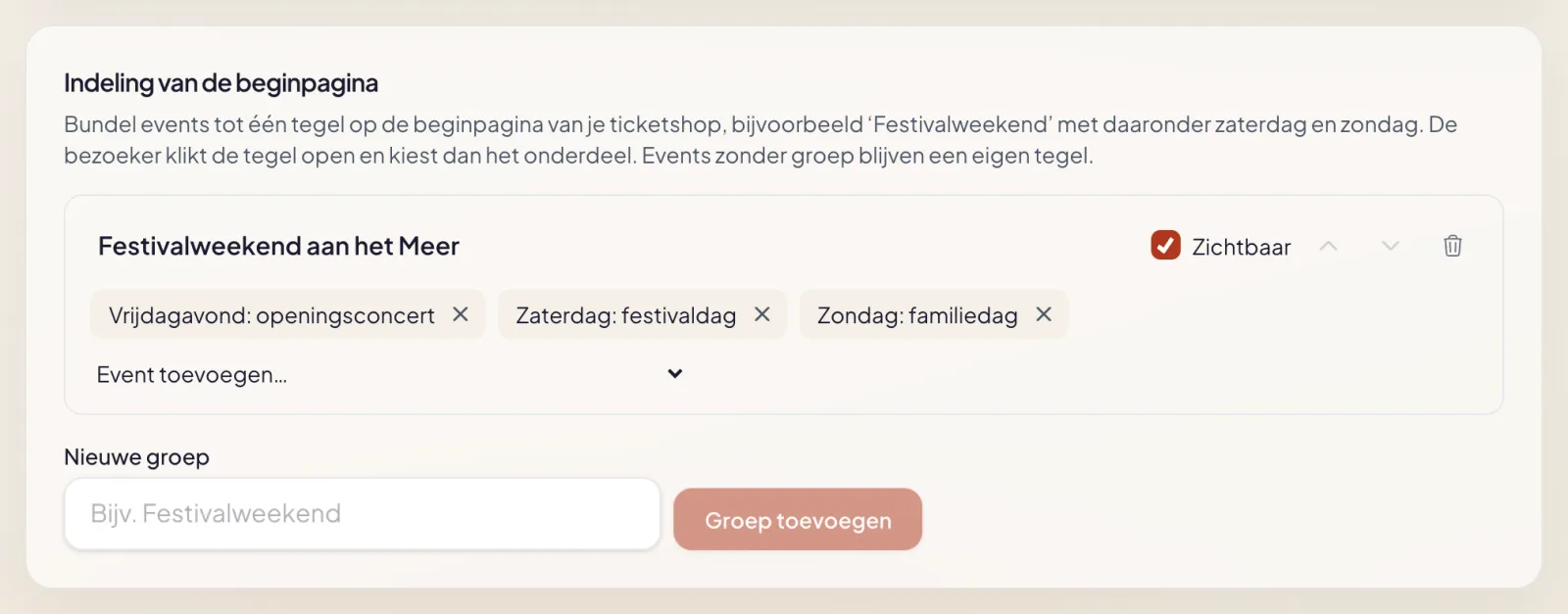
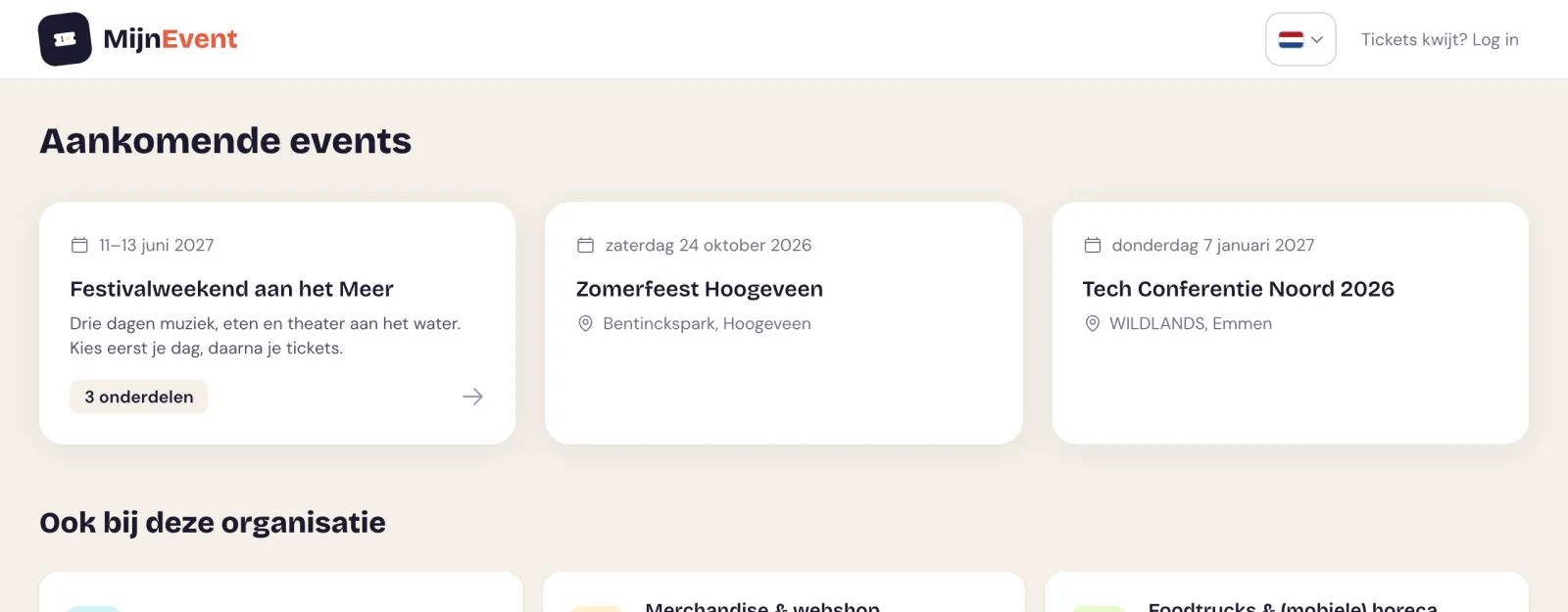
Under Events you will find Home page layout. Give the group a name and a short description and pick which events belong to it. On your home page the group is one tile, with the period and the number of events. Events without a group keep their own tile.
   2

### Set up the ticket groups per event

You put ticket types into groups, and each group can be shown collapsed by default. The visitor then sees one block with the name and the number of ticket types, and opens it when needed.

   3

### Write the notice and link the groups

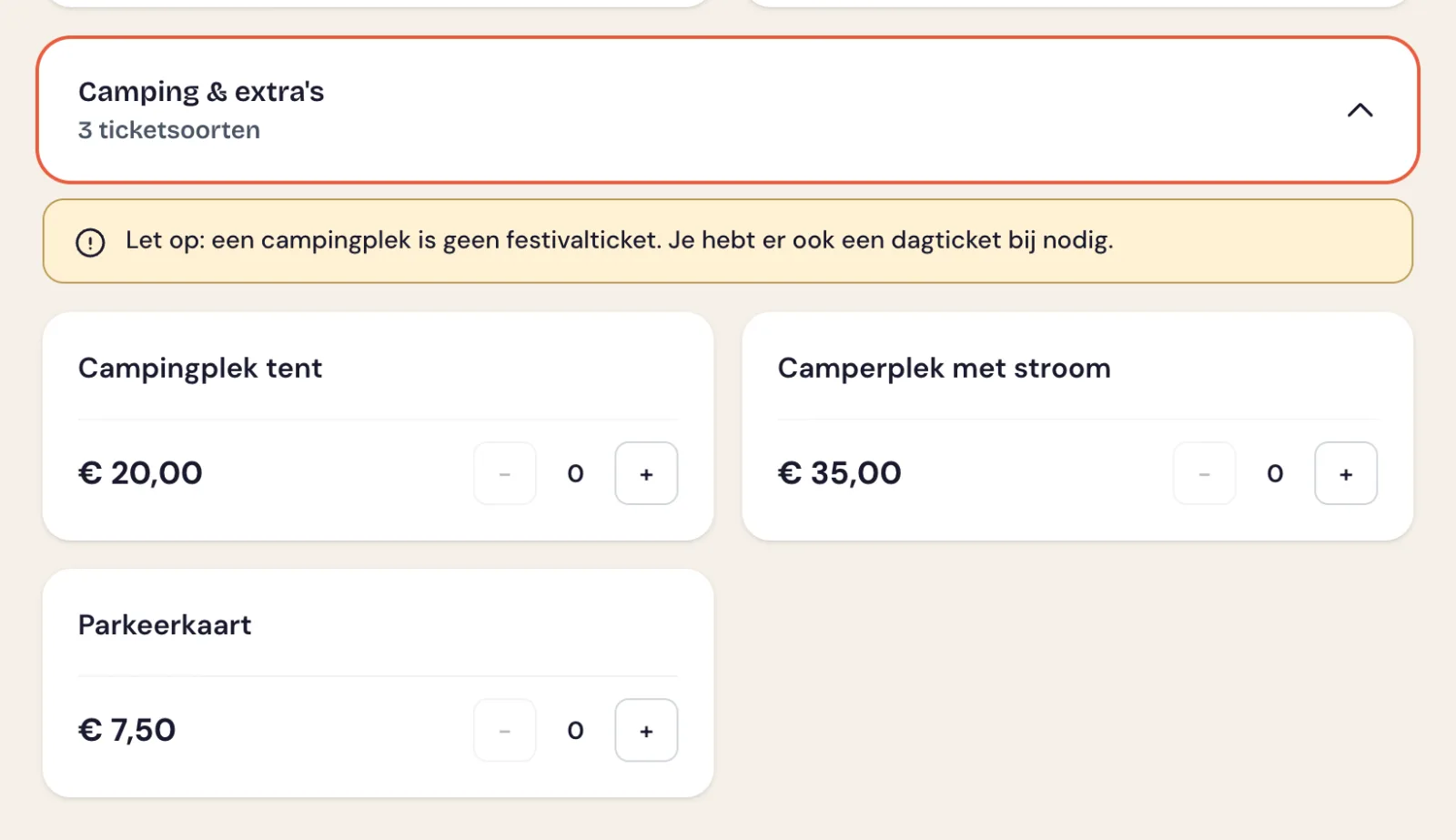
Above a group you put a notice, for example that a camping pitch is not a festival ticket. If you link the group to another group, the order summary warns anyone who only has a camping pitch in their basket.

   In pictures

## What it looks like for your visitor, and for you

The home page, a ticket group with a notice, and the screen where you set it up.

  ![The home page of a ticket shop with one tile for a festival weekend from 11 to 13 June 2027 with 3 events, next to two separate events, without prices](https://regify-mijnevent.s3.eu-central-1.amazonaws.com/blog/inline/shop-tegels.webp) Three festival days behind one tile, next to two separate events. Prices are switched off here and only appear on the event page.   ![An opened ticket group for camping and extras with a notice at the top that a camping pitch is not a festival ticket, and three ticket types below it](https://regify-mijnevent.s3.eu-central-1.amazonaws.com/blog/inline/ticketgroep-banner.webp) The group is closed by default. Opening it shows the notice first and then the ticket types.   ![The Home page layout block in the dashboard, with one group, three attached events and the buttons to sort and delete](https://regify-mijnevent.s3.eu-central-1.amazonaws.com/blog/inline/beheer-indeling-beginpagina.webp) In your dashboard: add a group, attach events, change the order and switch visibility on or off.  

   What you set up

## Four switches for a calm shop

They are independent. Use one, or all four.

      ### Event groups on your home page

A group bundles events behind one tile with a page of its own. You decide the order, and with one tick you take a group out of sight for a while. A group without upcoming events disappears by itself.

      ### Show prices on the home page, or not

One switch in the style settings. When it is off, there are no prices on your home page and on the page of a group. On the event page they are always there.

      ### A ticket group collapsed by default

Useful with many ticket types of the same kind: seven stands, five camping fields, a row of workshops. A click closes the group again, and the header shows how many tickets from it are in the basket.

      ### A notice above the group and on the ticket

The visitor reads the notice above the group before choosing. The notice per ticket type is on the ticket itself: in the confirmation email, on the PDF, in Apple and Google Wallet and in their account.

   What you use it for

## Four situations where a flat list works against you

The more you offer, the more the order in which someone chooses matters.

      ### The multi-day festival

Friday, Saturday and Sunday as events of their own, each with its own capacity and scan list, but with one entrance on your home page.

      ### The season of a theatre or club

Spring and autumn as a group, or the youth shows apart from the evening programme. The visitor does not have to scroll through twenty cards.

      ### Tickets with extras

Camping, parking or a lunch belong to the event, but are not the ticket itself. In a collapsed group, with the notice that an admission ticket is needed too, no one buys only a parking pass by accident.

      ### An organisation with several faces

A village hall with a festival week, a film night and courses. Groups keep apart what belongs together, on the same shop and with the same dashboard.

   Good to know

## Three things you would rather know now

So the layout does what you expect from it.

## The warning does not block

Anyone who only picks something from a linked group gets a warning with a button to the other group, but can simply check out. After all, someone may already have bought the admission ticket earlier.

## A group goes one level deep

An event group contains events, not other groups. That keeps it at two clicks for the visitor: first the group, then the event.

## Everything is translated along

The name and description of a group, the notice above a ticket group and the notice on the ticket are translated into the languages you offer, and you can fine-tune them per language.

   Frequently asked questions

## Frequently asked questions

## Do I have to use event groups?

  No. Without groups every event is simply its own tile on your home page, as you are used to. Groups are there for when that list gets too long.

## What happens to the link to a group when I change its name?

  Nothing. The address of the group page is fixed when you create it and does not change with the name. A link you have already shared keeps working.

## What happens to the events when I delete a group?

  They remain, with all their tickets and orders. After that they are separate tiles on your home page again.

## Can I hide prices per event?

  No, it is one setting for your whole shop. On the event page itself the prices are always shown, because that is where the visitor picks tickets.

## Does the scanner check whether someone also has the other ticket?

  No. The link between groups gives a warning when ordering and a notice on the ticket. At the door you scan each ticket separately.

# Ready to tidy up your shop?

Event groups, ticket groups and notices are part of every pricing model. You only pay the fixed fee per paid ticket.

 [Start free](https://mijnevent.nl/registreer) [View pricing](https://mijnevent.nl/en/pricing)