# The ticket itself — a PDF with a QR code, your logo and sponsor logos — MijnEvent

 The ticket

# The one thing your visitor keeps carries your name

A ticket is the only piece of your event that people genuinely hold on to, forward to a friend and wave at the entrance. At MijnEvent that is a PDF with a separate QR code per ticket, your logo at the top and room at the bottom for the sponsors who help make your event happen. And anyone who would rather not print puts the pass in Apple or Google Wallet.

 [How it works](#how-title) [All features](https://mijnevent.nl/en/features) 

- 1The payment lands

    Mollie confirms the payment via iDEAL | Wero or another method. Only then are the tickets created — never a ticket without money behind it.
- 2The ticket is in the inbox

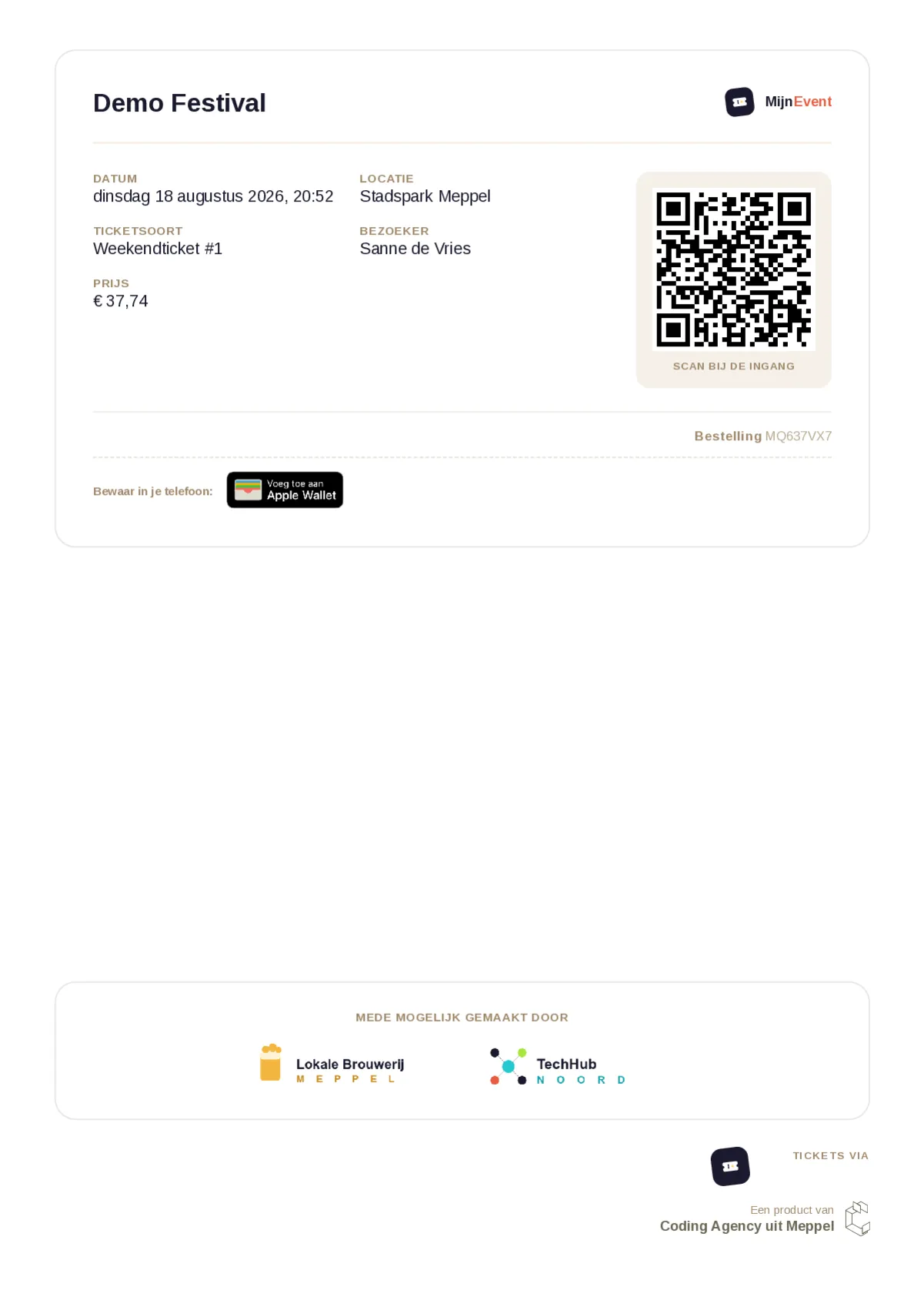
    The confirmation email goes out with the PDF attached: one page per ticket, your logo top right and the QR code beside it.
- 3Scanned at the door

    Your steward scans the QR from paper, from a phone screen or from the wallet pass. For a group order, a single collective QR does the job.

  How it works

## How a ticket comes into being

You set it up once per event. After that every ticket rolls out the same way — whether it is one admission or two hundred.

  1

### The payment is confirmed

The moment Mollie reports that the money has arrived, the platform creates a ticket for every admission bought, each with its own random code. That code is what sits inside the QR — not your order number, and not a counter anyone could guess.
   2

### The PDF is assembled

Every ticket gets its own page with the event name, date, location, ticket type, the visitor’s name and the price paid. Your logo sits top right; the sponsor band goes along the bottom, with a small MijnEvent footer next to it.

   3

### It goes out and gets scanned

The PDF travels as an attachment to the confirmation email and also stays in the visitor’s account — so losing it is almost impossible. At the door only the QR counts: scanned is scanned, and a second attempt will not work.

   On paper

## What a ticket looks like

One ticket per page, with the sponsor band pinned to the bottom. If someone buys four tickets, your sponsor is on screen four times too.

  ![A ticket PDF showing the event name and the organiser’s logo at the top, the event details on the left and a QR code on the right, and along the bottom a band headed “Made possible by” with four sponsor logos side by side.](https://regify-mijnevent.s3.eu-central-1.amazonaws.com/blog/inline/ticket-pdf-sponsoren-v2.webp) A ticket page with the sponsor band at the bottom. The framed collective QR on the lower left only appears on orders of two or more tickets.    Sponsor logos

## Your ticket is ad space you get to sell yourself

The garage round the corner, the builders’ merchant, the bank on the square — they are happy to back you, but they do want something tangible in return. A logo on every ticket is exactly that.

        ### On every ticket, below the line

Along the bottom of every ticket page sits a band headed “Made possible by” with the logos underneath. You switch that band on or off per event — for a private evening you simply leave it out.

      ### Something in return you can actually explain

Unlike a banner that ends up in a skip afterwards, a ticket travels into an inbox, onto a phone and sometimes onto the fridge door. You can tell a sponsor exactly how many tickets were sold — and therefore how often their logo went along for the ride.

       ### Upload, set the order, done

You upload a PNG, JPG or WebP of up to 2 MB and the platform scales the logo down itself, so the PDF stays light. The sort order decides who goes first — handy when your headline sponsor pays more than the rest. Per sponsor you separately choose whether they may appear on tickets.

        ### One list for your whole organisation

Your sponsors live at organisation level rather than per event. So you maintain the list once and only decide per event whether the band tags along. Worth knowing: those logos sit on the PDF attachment, not in the body of the confirmation email.

   Your branding

## The ticket feels like yours, not ours

MijnEvent gets a small mention at the bottom. What your visitor sees first is you.

       ### Your logo at the top

Upload your logo in your branding settings and it appears top right on every ticket page, next to your event name. No logo uploaded yet? Then the ticket falls back to the MijnEvent wordmark — it never looks bad, but it only looks like you once yours is there.

       ### Everything anyone needs at the door

Date and start time, location, ticket type with a sequence number, the visitor’s name, the price paid and a short order reference. Working with time slots or numbered seats? Then the chosen block or seat is printed prominently alongside.

       ### Or no paper at all

Both the ticket and the confirmation email carry the official Apple Wallet and Google Wallet buttons. One tap and the card is on the phone — same QR, your logo and the event date, so it surfaces on the lock screen at exactly the right moment.

       ### Real text, not a picture

The PDF is built from real text rather than a screenshot of a ticket. Your visitor can search it, copy from it and have it read aloud — and you can work out from your mail client which ticket belonged to which order.

   On screen

## What your visitor sees after checking out

From confirmation email to the PDF with its QR code — and how someone gets their tickets back when that email has gone missing.

     Finding and downloading tickets, even without the original confirmation email.    Good to know## The rough edges, told up front

We would rather be honest now than have you find out on the morning of your event.

## Your colours live on your ticket shop, not on the PDF

The ticket is deliberately white with dark text: that reads best, scans most reliably and uses the least ink. Your own colours and typeface go on your ticket shop and event pages; on the ticket itself your logo is the brand element.

## Four sponsor logos, and no SVG

Four fit on a ticket. Switch on more and only the first four in your sort order show up — your admin screen warns you about it. Logos have to be PNG, JPG or WebP; SVG is rejected because it renders unreliably inside a PDF.

## No attachment is not a closed door

The PDF is rendered off-site. If that goes wrong once, the confirmation email still goes out — with the QR code right there in the message, as long as you have QR codes switched on. So your visitor is never left empty-handed because an attachment failed.

   Frequently asked questions

## Frequently asked questions

## Does every ticket get its own QR code?

 Yes. Every ticket gets its own randomly generated code that cannot be derived from your order number. Order two or more tickets and a collective QR is added, letting your steward check the whole group in with a single scan — handy for a family or a coachload.

## Does my visitor have to print the ticket?

 No. Paper, phone screen or wallet pass all work equally well; your steward scans the same QR code. Most people simply hold up their screen.

## Can I switch the sponsor band off per event?

 Yes. Whether the sponsor band travels along is set per event. The sponsor list itself you maintain once for your whole organisation, and within it you decide per sponsor whether they may appear on tickets.

## Do the sponsor logos appear in the confirmation email too?

 No, and that is deliberate. The logos sit on the ticket PDF that goes along as an attachment. That keeps the message itself light and stops a mail client blocking images from making your sponsor invisible.

## Can I edit the text on the ticket myself?

 The ticket layout is fixed — that is what keeps it readable and scannable at the door. You do write the body of the confirmation email yourself, and per ticket type you can add a short note to it, for example “bring photo ID”.

## Do the wallet passes work on every phone?

 Apple Wallet works on iPhone, Google Wallet on Android. The buttons only appear when wallet passes are switched on for your event. A pass expires by itself thirty days after your event ends, so your visitor’s wallet does not silt up with old cards.

# Ready to send out your first tickets?

The PDF, the QR codes, the wallet passes and the sponsor band are included in every pricing model. You only pay the fixed fee per ticket sold.

 [Start free](https://mijnevent.nl/registreer) [See all features](https://mijnevent.nl/en/features)
