# Many events, still a calm ticket shop — MijnEvent

  [Home](https://mijnevent.nl/en) / [Blog](https://mijnevent.nl/en/blog) / Many events, still a calm ticket shop   ticket shop event groups ticket types home page 

# Many events, still a calm ticket shop

 Three festival days, camping, parking and a row of separate events: your ticket shop quickly turns into a long list of prices. With event groups, collapsed ticket groups and a notice in the right place, your visitor chooses step by step.

 [Jasper Koers](https://mijnevent.nl/en/author/jasper-koers) · 22 September 2026 · 6 min read 

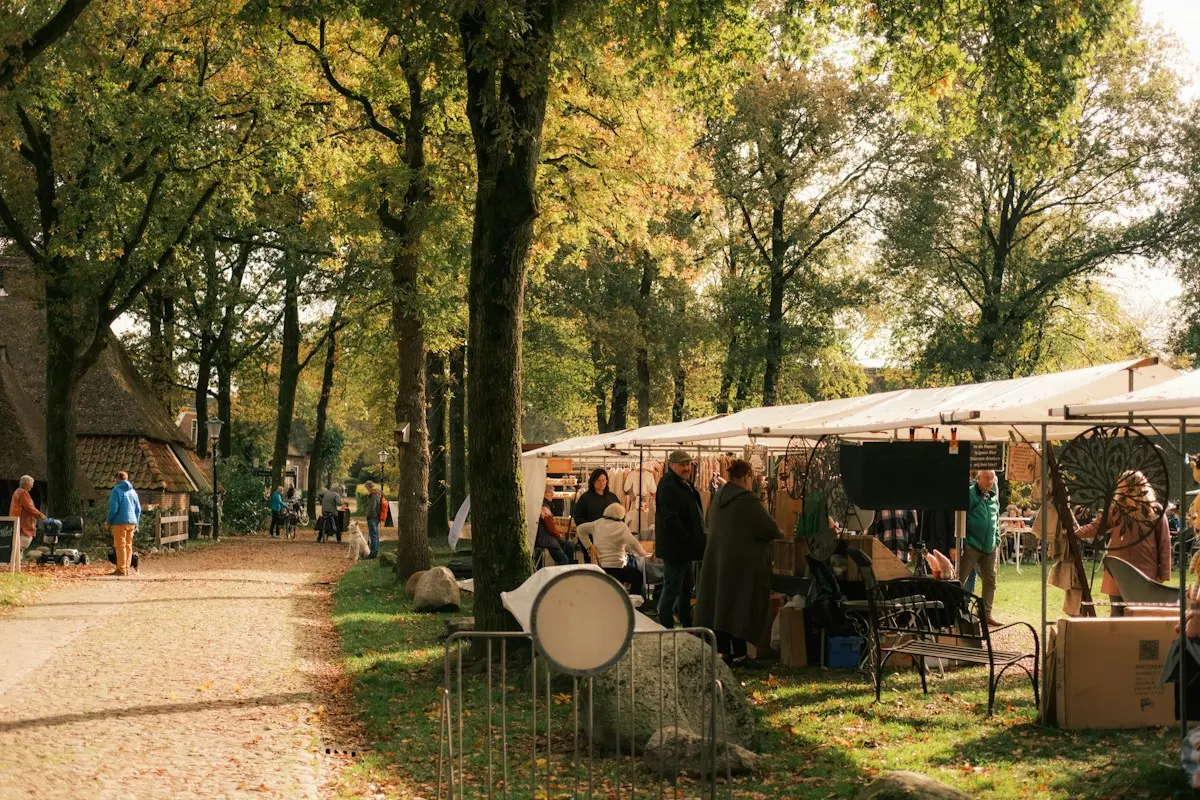
  ![](https://regify-mijnevent.s3.eu-central-1.amazonaws.com/blog/covers/rustige-ticketshop-event-groepen-en-ticketgroepen.webp)  Photo: [Bryan Dijkhuizen](https://unsplash.com/@bryandijkh?utm_source=MijnEvent&utm_medium=referral) / [Unsplash](https://unsplash.com/?utm_source=MijnEvent&utm_medium=referral)     In short

- An event group bundles events behind one tile on your home page. The visitor opens the tile and then picks the part, for example the day of a festival weekend.
- One switch removes the prices from your home page and from the group page. On the event page itself they are always shown.
- A ticket group can be shown collapsed by default, with a notice above it. Link the group to another group and the order summary warns anyone who only picks something from that one group. The order is never blocked.
- The notice per ticket type is on the ticket itself: in the confirmation email, on the PDF, in Apple and Google Wallet and in the visitor's account.

# It starts with one event

Your first event is in your ticket shop and it looks fine: one card, one price, done. A year later you run a festival weekend with a Friday night, a Saturday and a Sunday. There is an autumn concert and a New Year's reception as well. Each day is an event of its own, because each day has its own capacity and its own scan list.

Your visitor sees five cards in a row, each with a "from" price. Someone coming for the Saturday first has to work out which of the five that is. And on the Saturday page the day tickets sit between the camping pitches and the parking passes.

None of that is wrong. It is just a lot. There are now four things that bring order to it, and you can use them independently.

The screenshots below show the Dutch interface; the English one works the same way.

# 1. Bundle events into one tile

An **event group** is a tile on your home page with a page of its own behind it. You give the group a name and a short description and pick which events belong to it. The tile shows the period the parts cover together and how many parts there are.
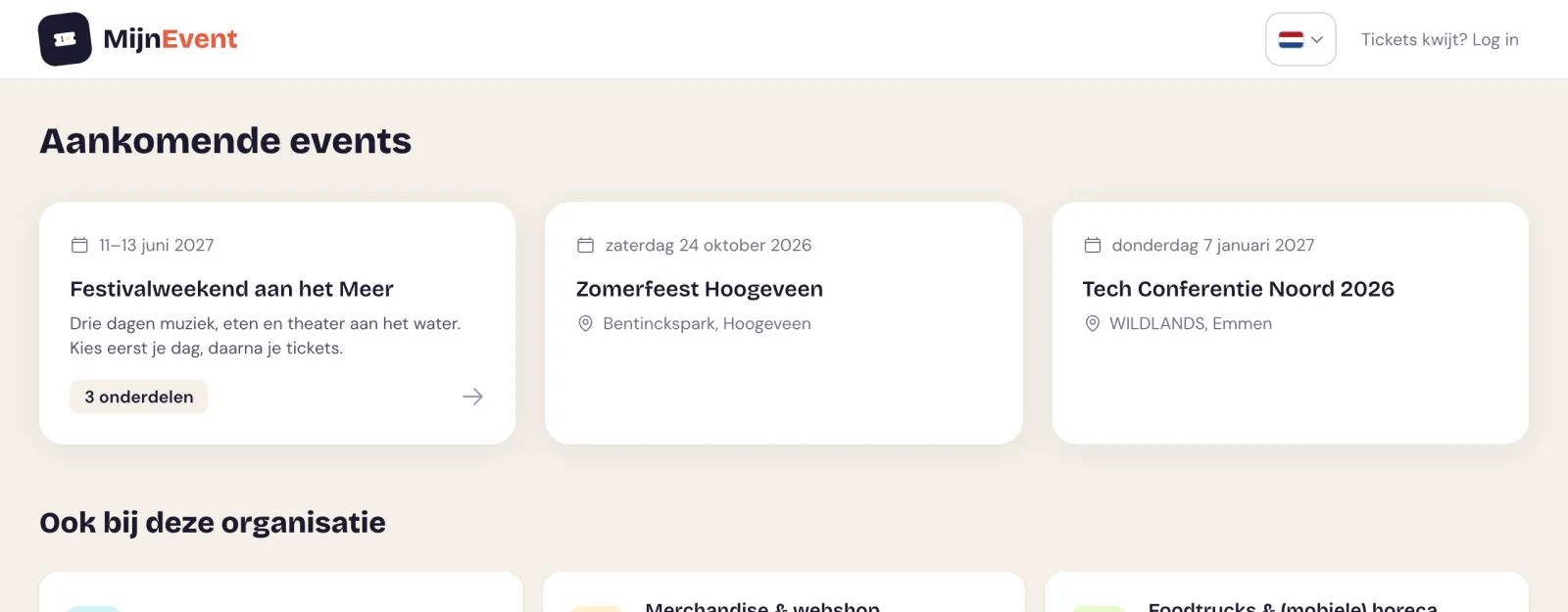
![The home page of a ticket shop with one tile for a three-day festival weekend, next to two separate events, without prices](https://regify-mijnevent.s3.eu-central-1.amazonaws.com/blog/inline/shop-tegels.webp)

The visitor clicks the tile and picks a day there. The event page has a link back to the group at the top, so moving to another day is easy.

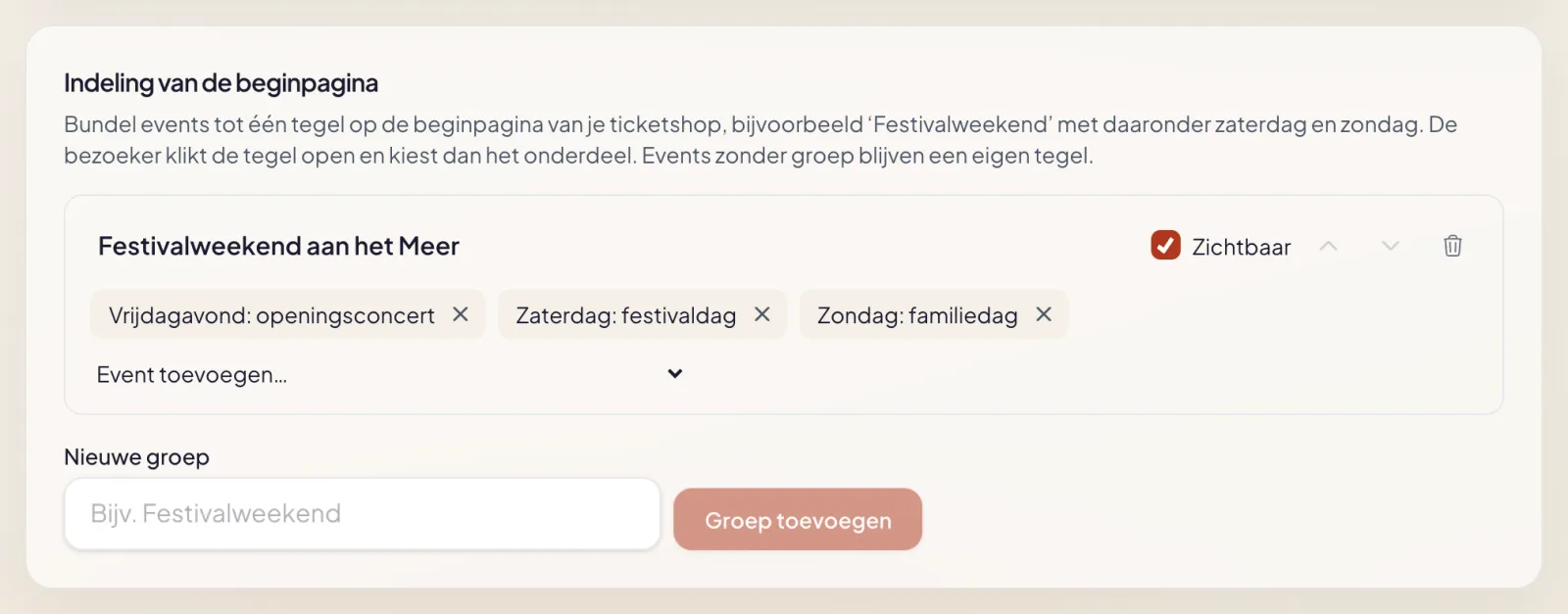
You set it up under **Events → Home page layout**:

![The Home page layout block in the dashboard, with a group, three attached events and the buttons to sort and delete](https://regify-mijnevent.s3.eu-central-1.amazonaws.com/blog/inline/beheer-indeling-beginpagina.webp)

A few things worth knowing up front:

- A group contains events, not other groups. For the visitor it stays at two clicks.
- Events without a group simply keep their own tile.
- A group without upcoming events is not shown on your home page. There is nothing to clean up afterwards.
- With the **Visible** tick you take a group out of sight for a while, for example while you are still filling it.
- The address of the group page does not change when you rename the group.

# 2. Prices only after the click

On a home page with many cards, a row of prices reads like a price list. Some organisations want exactly that. Others prefer visitors to choose what they want first, and only then show what it costs.

Under **Integrations → style studio** you will find the switch **Show prices on the home page**. Switch it off and the prices disappear from your home page and from the group pages. On the event page they are always there, because that is where the visitor picks tickets. It is one setting for your whole shop.

# 3. A ticket group that only opens when you need it

You could already put ticket types into groups. What is new is that a group can be shown **collapsed by default**. The visitor then sees one block with the name of the group and the number of ticket types, and opens it when needed. A click closes it again, and the header shows how many tickets from the group are in the basket.

That works well for everything that belongs to the event but is not the ticket itself: camping, parking, a lunch. Or for a long row of the same kind, such as five camping fields or eight workshops.

# 4. The warning where it gets read

Above a group you can put a **notice**. When someone opens the group, that notice is at the top, before the ticket types.
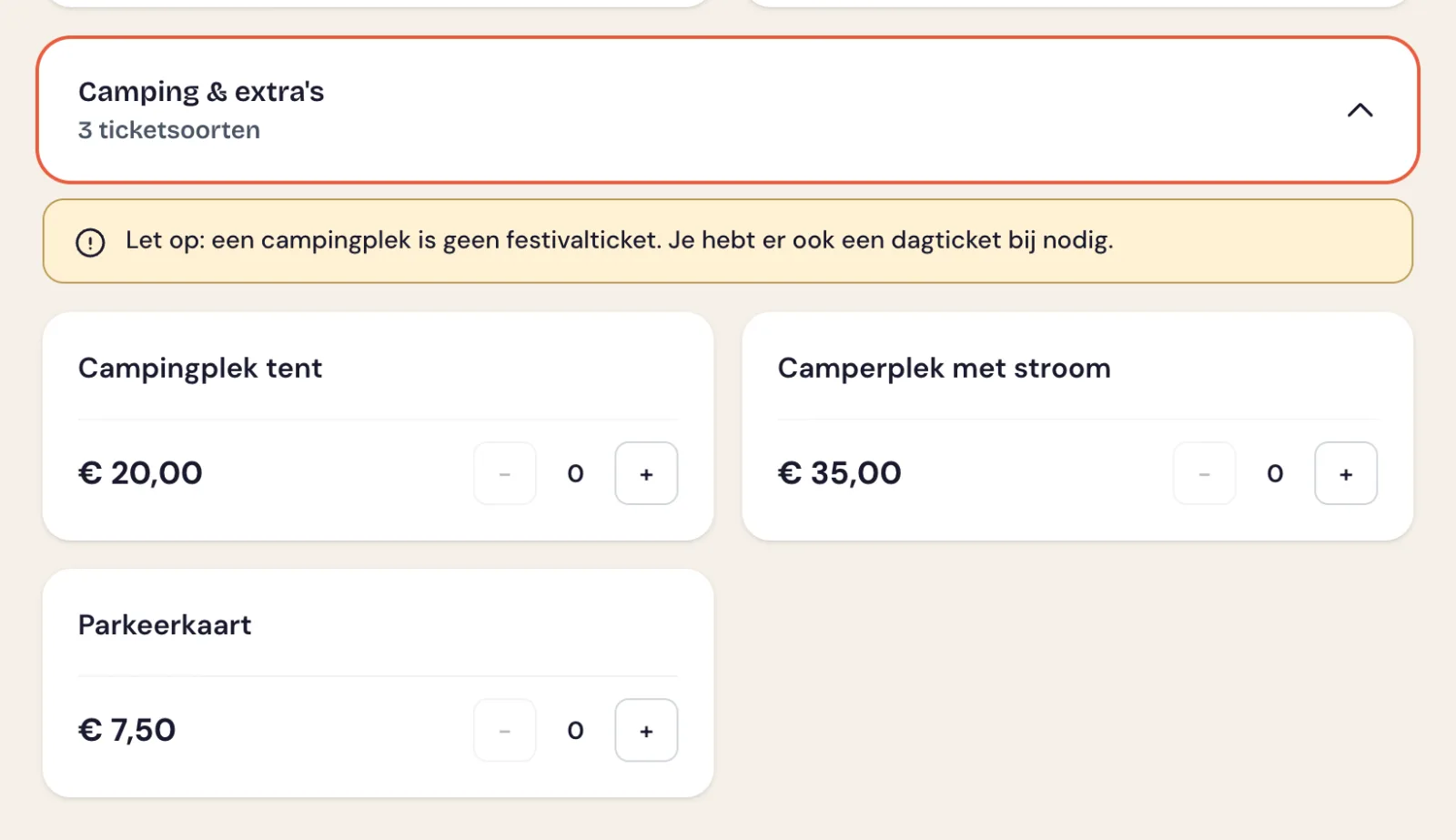
![An opened ticket group for camping and extras with a notice at the top that a camping pitch is not a festival ticket](https://regify-mijnevent.s3.eu-central-1.amazonaws.com/blog/inline/ticketgroep-banner.webp)

Link the group to another group ("only valid together with a ticket from Day tickets") and the order summary keeps an eye out. Anyone with only a camping pitch in the basket sees the warning once more there, with a button to the day tickets.
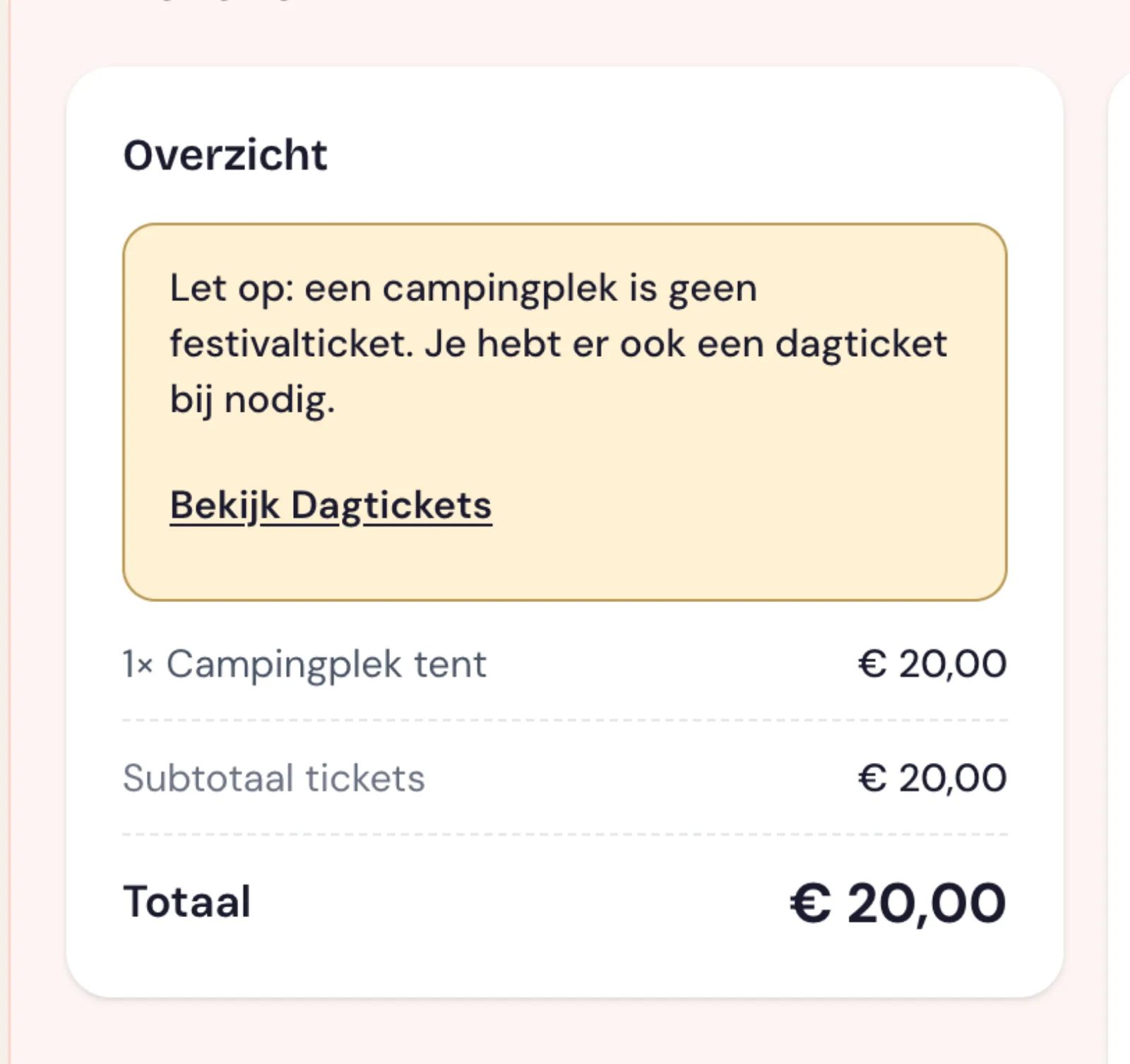
![The order summary with a yellow warning that a camping pitch is not a festival ticket and a button to view the day tickets](https://regify-mijnevent.s3.eu-central-1.amazonaws.com/blog/inline/besteloverzicht-waarschuwing.webp)

The order is not held back. Someone may have bought a day ticket last week and only be adding the camping now. That simply has to be possible.

You set it up through the sliders icon next to the group name, on the Ticket types tab of your event:
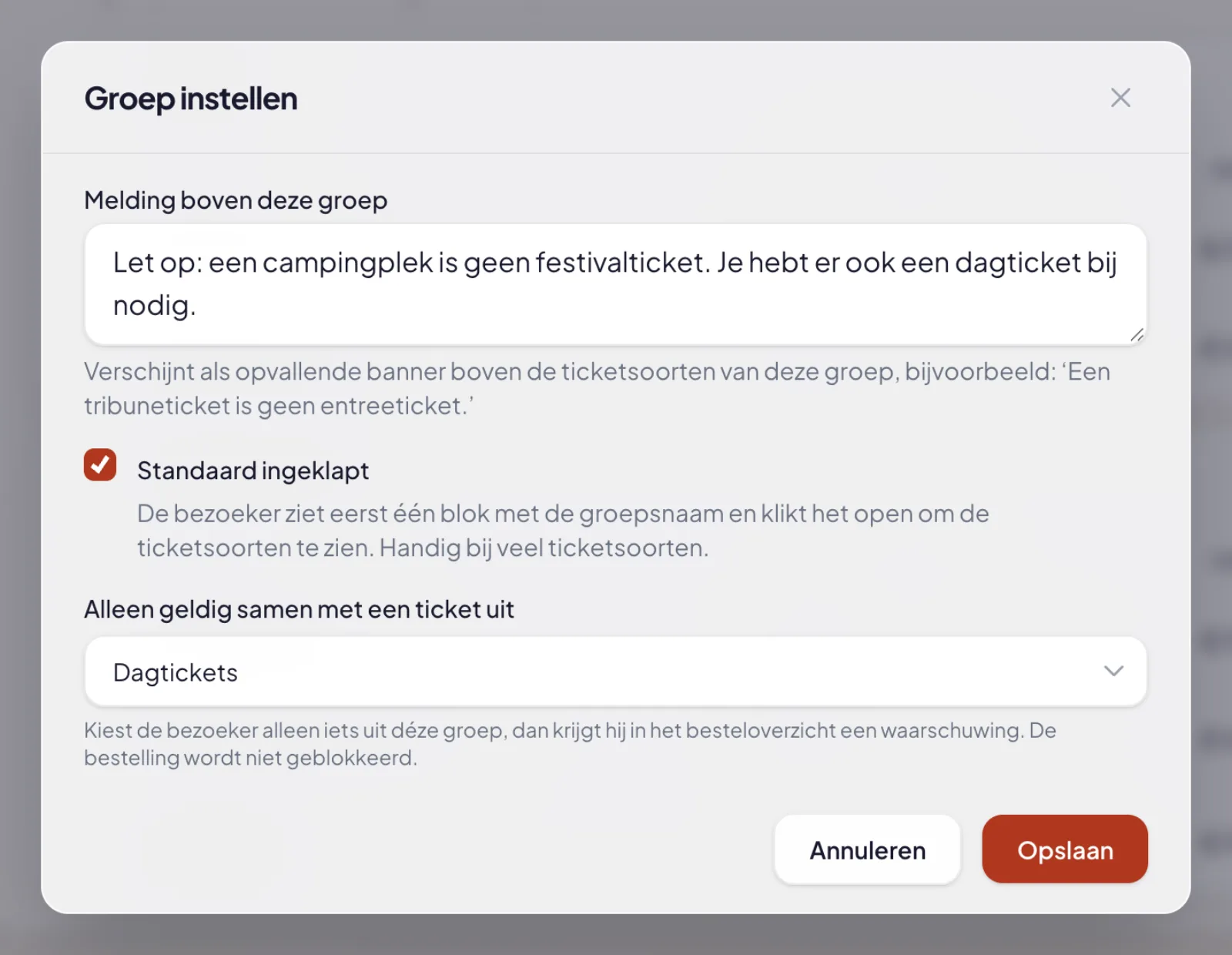
![The group settings window with a notice, the tick for collapsed by default and the choice of the group the tickets are valid together with](https://regify-mijnevent.s3.eu-central-1.amazonaws.com/blog/inline/beheer-groep-instellen.webp)

# And on the ticket itself

A notice on the event page helps while ordering. On the day itself your visitor only has the ticket. That is why you can enter a **notice on the ticket** per ticket type, for example "Only valid together with a day ticket for the same day".

That text was already in the confirmation email. It is now also on the ticket PDF, on the back of the pass in Apple Wallet, as a text line in Google Wallet and with the ticket in the visitor's account.

# Multilingual

Do you offer your shop in more languages? The name and description of an event group, the notice above a ticket group and the notice on the ticket are translated automatically, like the rest of your event texts. In the translation editor you fine-tune them per language.

# Where to start

If you have three or more events on sale at the same time, start with an event group. It takes five minutes and makes the biggest difference for your visitor. If you sell extras next to tickets, put those in a collapsed group with a notice above it.

There is more on the page [Organise your ticket shop](/en/organise-your-ticket-shop).

   Frequently asked questions

## Frequently asked questions

## Do I have to use event groups?

  No. Without groups every event is simply its own tile on your home page. Groups are there for when that list gets too long.

## Does the link of a group change when I rename it?

  No. The address of the group page is fixed when you create it. A link you have already shared keeps working, even if the group is called something else later.

## What happens to the events when I delete a group?

  They remain, with all their tickets and orders. After that they are separate tiles on your home page again.

## Does the warning in the order summary stop an order?

  No. It is a warning with a button to the other group. Someone may have bought the other ticket earlier, so checking out always remains possible.

## Does the scanner check whether someone has both tickets?

  No. At the door you scan each ticket separately. The link between groups gives the warning when ordering and the notice on the ticket.

  [    Back to blog ](https://mijnevent.nl/en/blog) 

  MijnEvent

## Read more

 [ ![](https://regify-mijnevent.s3.eu-central-1.amazonaws.com/blog/covers/besloten-ticketverkoop-met-toegangscode.webp) private sales 

 Jasper Koers · 22 September 2026 · 5 min read

## Private ticket sales: an event that can only be ordered with a code

The staff party, the tickets for sponsors, the group booking of a travel company: you want to handle them online, but not among your regular events. With an access code the event cannot be found, and only the people you invite can order.

 ](https://mijnevent.nl/en/blog/private-ticket-sales-with-an-access-code) [ ![](https://regify-mijnevent.s3.eu-central-1.amazonaws.com/blog/covers/afhakers-in-je-ticketcheckout.webp) checkout 

 MijnEvent · 21 September 2026 · 7 min read

## Seven in ten walk away: where your ticket checkout loses buyers

On average only three in ten online shoppers finish their order. With tickets, the leaks sit in predictable places: surprise fees, forced accounts, too many fields. Here is how to audit your own checkout.

 ](https://mijnevent.nl/en/blog/ticket-checkout-abandonment) [ ![](https://regify-mijnevent.s3.eu-central-1.amazonaws.com/blog/covers/ai-connector-mcp-run-your-dashboard-from-claude.webp) ai 

 MijnEvent · 18 September 2026 · 8 min read

## AI connector (MCP): run your MijnEvent dashboard from ChatGPT, Claude or Cursor

With the AI connector you ask your own AI assistant how sales are going, look up orders without clicking around and have drafts prepared. Within your team member's permissions, with everything in the activity log. Refunds and publishing stay human work.

 ](https://mijnevent.nl/en/blog/ai-connector-mcp-run-your-dashboard-from-claude) 

   MijnEvent

## Ready to get started?

Create a free account and sell your first tickets today.

 [Start free](https://mijnevent.nl/registreer) [Pricing](https://mijnevent.nl/en/pricing)