A shop that accepts a local voucher works with two systems. In the shop app you scan the customer's voucher and deduct the amount. That updates the voucher, but your own till knows nothing about it yet. If you do not book it there, your end-of-day count is off and the voucher is missing from the receipt.
Every till handles this differently. So in the shop app you choose what appears on screen after redeeming. There are four ways.
Four ways, your choice
| Way | What you see after redeeming | Suits |
|---|---|---|
| An instruction (default) | The amount, with your note for the person at the till | A till with a button for a (paper) gift card |
| A fixed EAN code | The barcode of your gift card item; you enter the amount yourself | A till that has a gift card as an item |
| A barcode with the amount (beta) | A barcode carrying the item and the amount | A till that reads price codes on an article number of your own |
| Amount only | Nothing extra | A shop that books it in its own way |
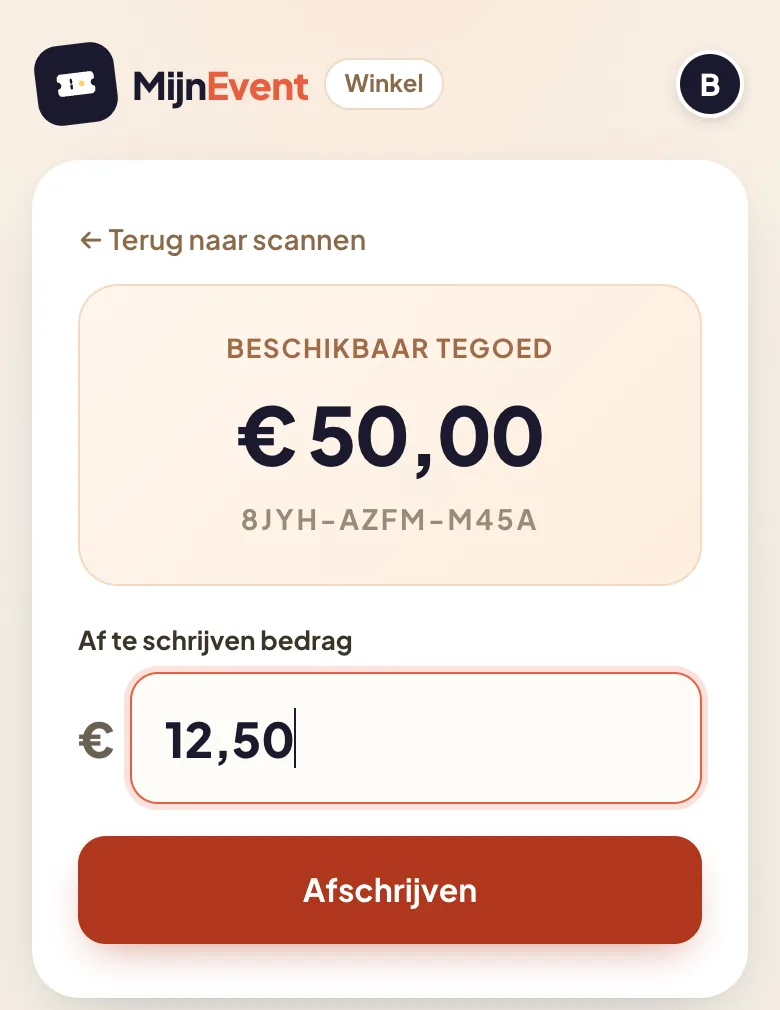
Redeeming itself is the same for all four: scan the voucher, enter the amount, confirm.
1. An instruction for the person at the till
This is the default, and for most shops the easiest. Most tills, including those of large national chains, have a button or payment method for a (paper) gift card. Your colleague taps it and enters the amount shown on the shop app screen.
After redeeming, the amount is shown large, with your instruction below it. The default text tells your colleague to choose "(paper) gift card" in the till and enter the amount shown above. You adapt it to your own till, for example with the name of the button or the function key.
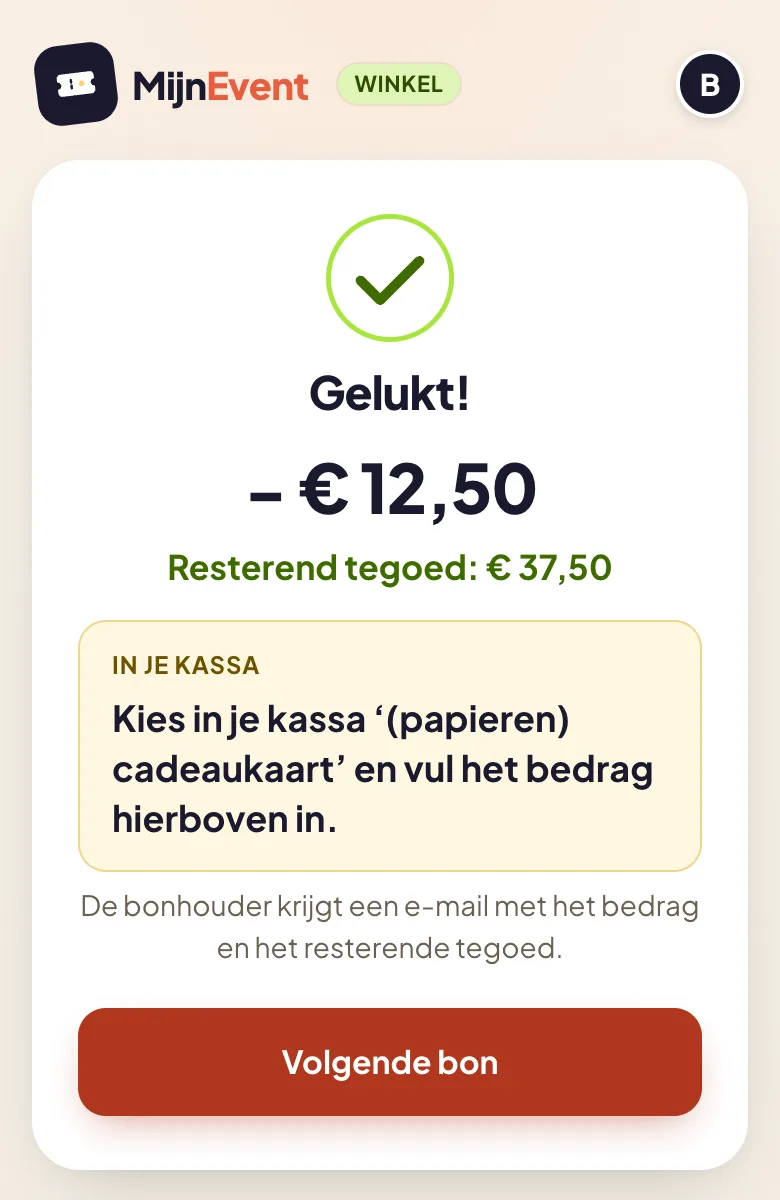
The amount then appears as a gift card on the receipt and in your end-of-day count. There is nothing to set up in your till and you do not need a scanner.
2. A fixed EAN code
Some tills have no gift card button, but an item with its own barcode. In that case, enter the full EAN code of that item (13 digits, or 8 for a short code). The app checks the last digit, so a typo shows up straight away.
After redeeming we show that code as a barcode. You scan it with your till scanner, the item lands on the receipt, and you type in the amount shown above it.
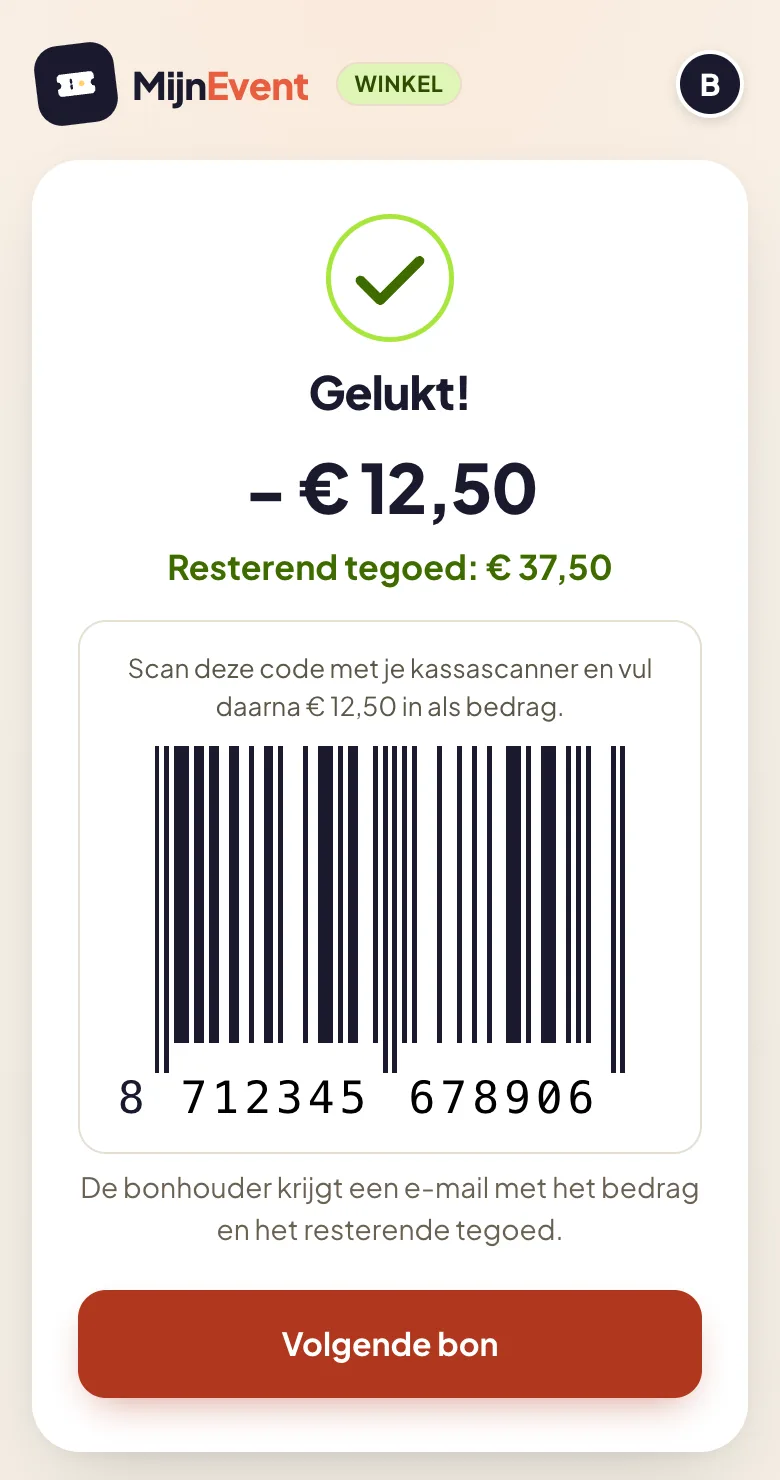
The code is the same every time. So you enter the amount in your till yourself; that is your own bookkeeping and separate from the redemption in MijnEvent, which is already done.
3. A barcode carrying the amount (beta)
Here the amount is inside the barcode itself. One scan puts the item and the amount in your till, with no retyping.
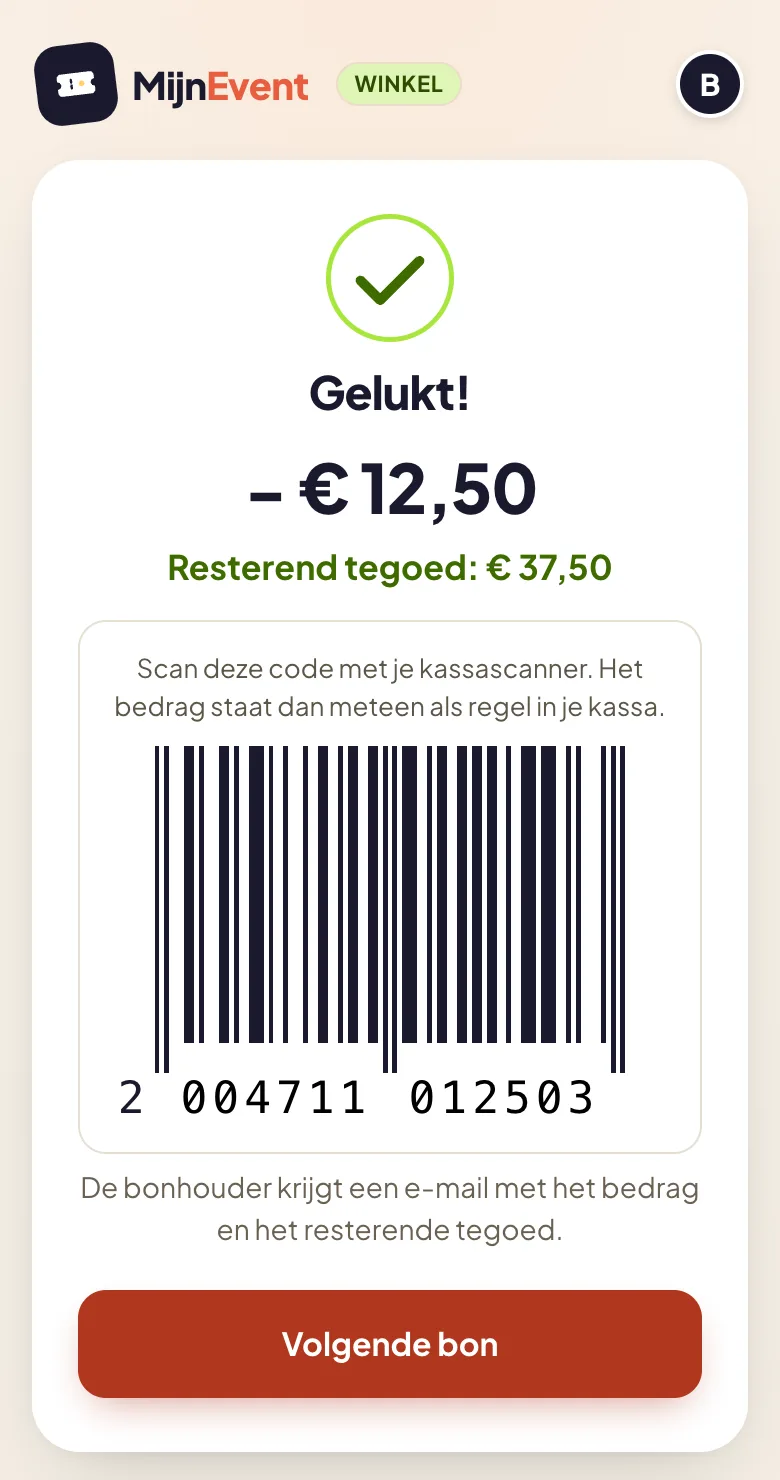
The mechanism is that of the scale label. The label from a butcher's or cheesemonger's scale has carried a barcode with the price inside it for decades. Our barcode uses the same kind of code (an EAN-13 with an in-store prefix), carrying your own article number and the redeemed amount.
A familiar mechanism does not mean every till accepts it this way. Whether your system processes a price code on an article number of your own differs per till, per version and per supplier. Read it as: in theory this should work, provided your till system supports it or your till supplier is willing to set it up.
Will it work for me?
Your till supplier knows best. Refer them to this article and ask two questions. Does the till read an EAN-13 price code (prefix 2) on an article number of your own? And which layout does it expect: six digits article and five digits amount, or five and six? If your supplier has technical questions about how the code is built, they can contact MijnEvent.
Your scanner also has to read the code from a screen. Modern scanners (2D imagers, the same ones that read digital coupons) do. An older laser scanner works with reflected light and cannot read a screen; aiming better does not help.
If your supplier says yes, create an item in your till, for example "City voucher", and enter the article number and the layout. If an amount does not fit the code, you see your instruction instead. If your supplier says no, choose one of the other ways.
4. Amount only
If you want no instruction and no code, you see only the redeemed amount and the remaining balance after redeeming. That suits a shop that does not book the voucher separately in its till, or a team that knows exactly what to do.
How to set it up
- Open your shop profile in the shop app.
- Go to the section about processing in your till and choose one of the four ways. Each one has a short explanation you can unfold.
- Fill in what belongs to your choice: the instruction, the EAN code, or the article number with the layout.
- Save. From the next redemption on, you see it on your screen.
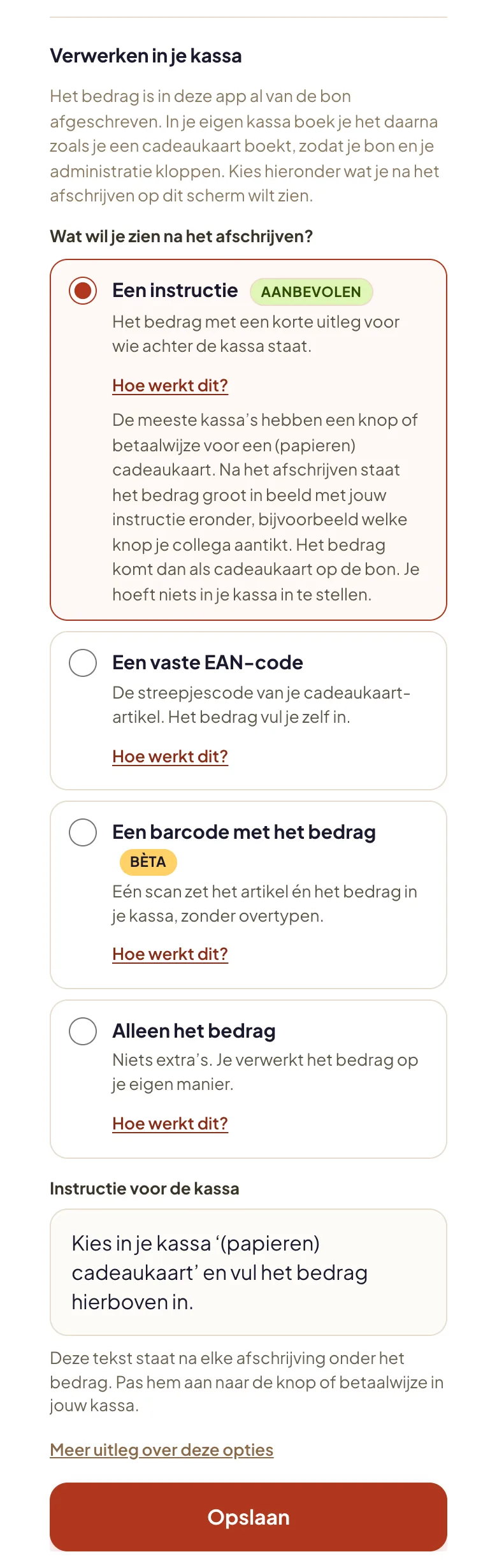
With the EAN code and the barcode you can also add an extra line, for example which till your colleague books the voucher on. You can switch at any time: your article number and EAN code are kept. The shop app itself is in Dutch.
Do I always need a phone?
No. The shop app is a web page, not an app from an app store. One device at the till is enough, and it does not have to be a new phone. An older phone or tablet from a drawer, or the computer next to the till, works too, as long as a browser runs on it.
A camera is handy, because then you scan the customer's QR code. If the device has no camera, you type the voucher code printed on the voucher. You then see the same balance and redeem in the same way.
So your staff do not need phones of their own. They log in on that one device with the shop's email address and PIN.
Why no link with the payment terminal?
Most shops have their payment terminal from the same large supplier. Paying with a city voucher on that terminal would be the easiest, and we get that question often.
There is no such link today. A payment terminal supplier earns on every transaction that runs through its system. A city voucher redeemed through MijnEvent competes with that, so such a party only wants the link if it also earns per transaction. That would almost certainly be more than the fixed €0.05 per redemption that MijnEvent charges.
That can change. When more cities join and more turnover runs through city vouchers, it may become interesting for such a supplier. We will look at it again once several cities are generating turnover. Until then the city voucher works alongside your payment terminal, with one of the four ways above.
How do you book the voucher in your accounts?
When a customer pays part of a sale with the city voucher, that is not a discount on the sale but a separate payment method. If you sell for €50 and the customer pays €20 with the voucher, the full €50 remains turnover. The customer pays €30 by card or cash, and the remaining €20 is paid out to you later by the issuing organisation.
So do not process the amount as an ordinary discount or negative turnover, but as a separate settlement: a payment method for gift vouchers or a separate item. That keeps the turnover in your till correct and makes it easy to reconcile the payout with the MijnEvent overview later.
Treat this as a starting point, not as accounting advice. How exactly you book the voucher line, for example as a pass-through item, is something to discuss with your till supplier and your bookkeeper or accountant.
For issuing organisations
Do you issue a city or regional voucher yourself? This choice is available to all your connected shops, with no setup on your side. Every shop starts on the instruction and then chooses for itself. In the dashboard you see per shop which way it uses.
Want to know more about the city card module? Have a look at our city card page or try the demo environment.