# Putting your poster on your event page — MijnEvent

  [Home](https://mijnevent.nl/en) / [Blog](https://mijnevent.nl/en/blog) / Putting your poster on your event page   poster artwork event page social media 

# Putting your poster on your event page

 The poster you already had designed belongs online too. Upload it once and it appears on your event page, on the overview card, in the widget and in the preview on social media.

 [Jasper Koers](https://mijnevent.nl/en/author/jasper-koers) · 14 September 2026 · 4 min read 

  ![](https://regify-mijnevent.s3.eu-central-1.amazonaws.com/blog/covers/event-poster-on-your-event-page.webp)  Image: made with AI     In short

- You upload the portrait poster for your event once; it then appears next to the description on the event page, as the card header in the overview and in the widget on your own site.
- The poster is straightened, resized and stored as WebP automatically, with a smaller variant for the cards — so your visitor never loads a ten-megabyte file.
- The social preview (the image WhatsApp, Facebook and LinkedIn show with your link) becomes a MijnEvent card with your poster on the left and the event details on the right.
- Replace the poster and the social preview refreshes along with it, instead of the old version lingering.

# The poster is all over town, but not online

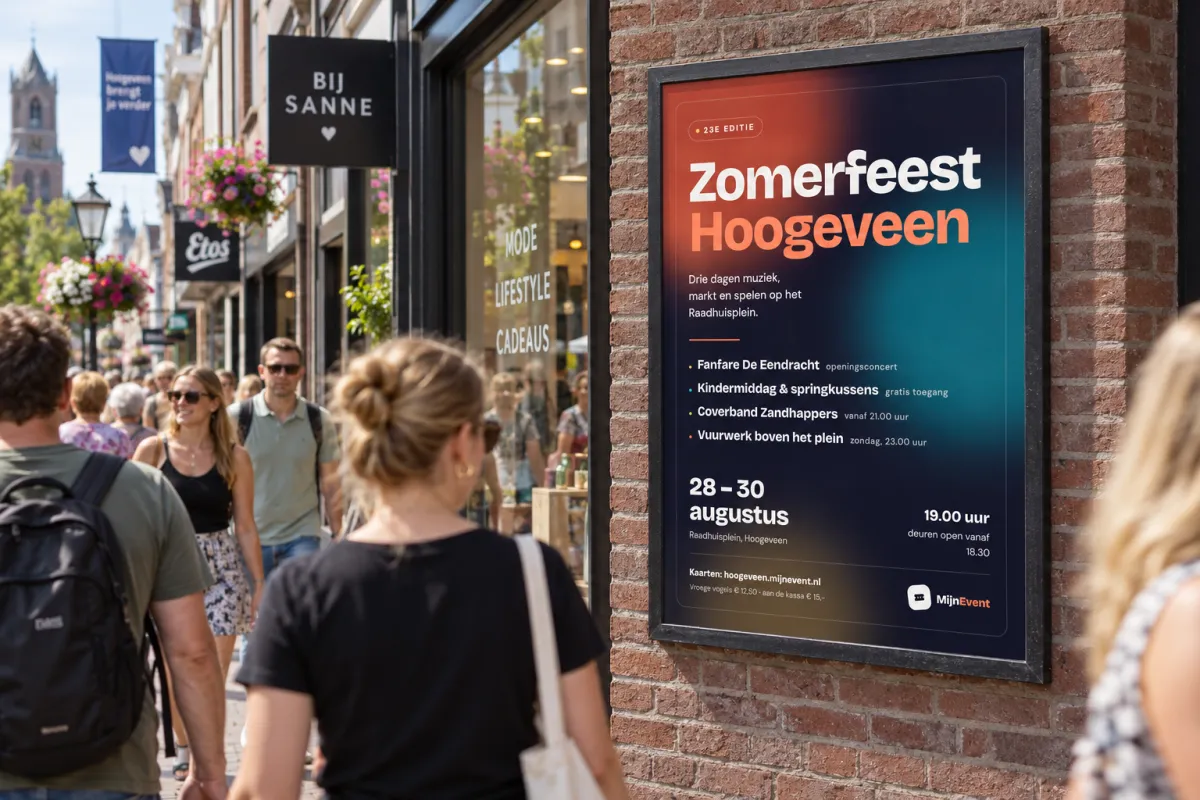
Almost every club has one: a poster. Somebody spent evenings on it, it hangs at the baker's, the sports hall and the village hall, and it is the cover image of your Facebook event. The one place it was missing was the page where people actually buy their tickets.

There was no good way to add it either: the only image slot was a wide band across the top of the page. Fitting a portrait poster into a landscape band means cropping, and cropping tends to remove exactly half the design — usually the half with the date on it.

So now you can upload a **poster**. Portrait, the way it was meant to be.

# Where it shows up

You upload it once with your event. After that it sits:

- **on the event page**, beside the description, in its own proportions;
- **as the card header in the overview** of your events, which instantly changes how your programme looks;
- **in the widget** you placed on your own website;
- **in the social preview**: the image WhatsApp, Facebook, LinkedIn or Mastodon show the moment somebody shares your link.

That last one is worth a second of attention. The preview is not a crop of your poster but a MijnEvent card: your poster on the left, the event name, date and venue on the right. The artwork stays recognisable and the details stay readable at the size it flies past in a timeline.

# Nothing to prepare

Drop in the file the way it came out of the design software or off the printer: JPG, PNG or WebP up to 10 MB. What happens next happens by itself:

- the image is straightened using the orientation data from the camera or scanner;
- it is resized to a maximum of 1600 pixels on the long edge;
- it is stored as **WebP**, a format that is considerably smaller than JPG at the same quality;
- a smaller variant is added for the overview cards, so a list of ten events does not load ten large files.

If your source file is already smaller than those limits, nothing is enlarged — it stays as it is.
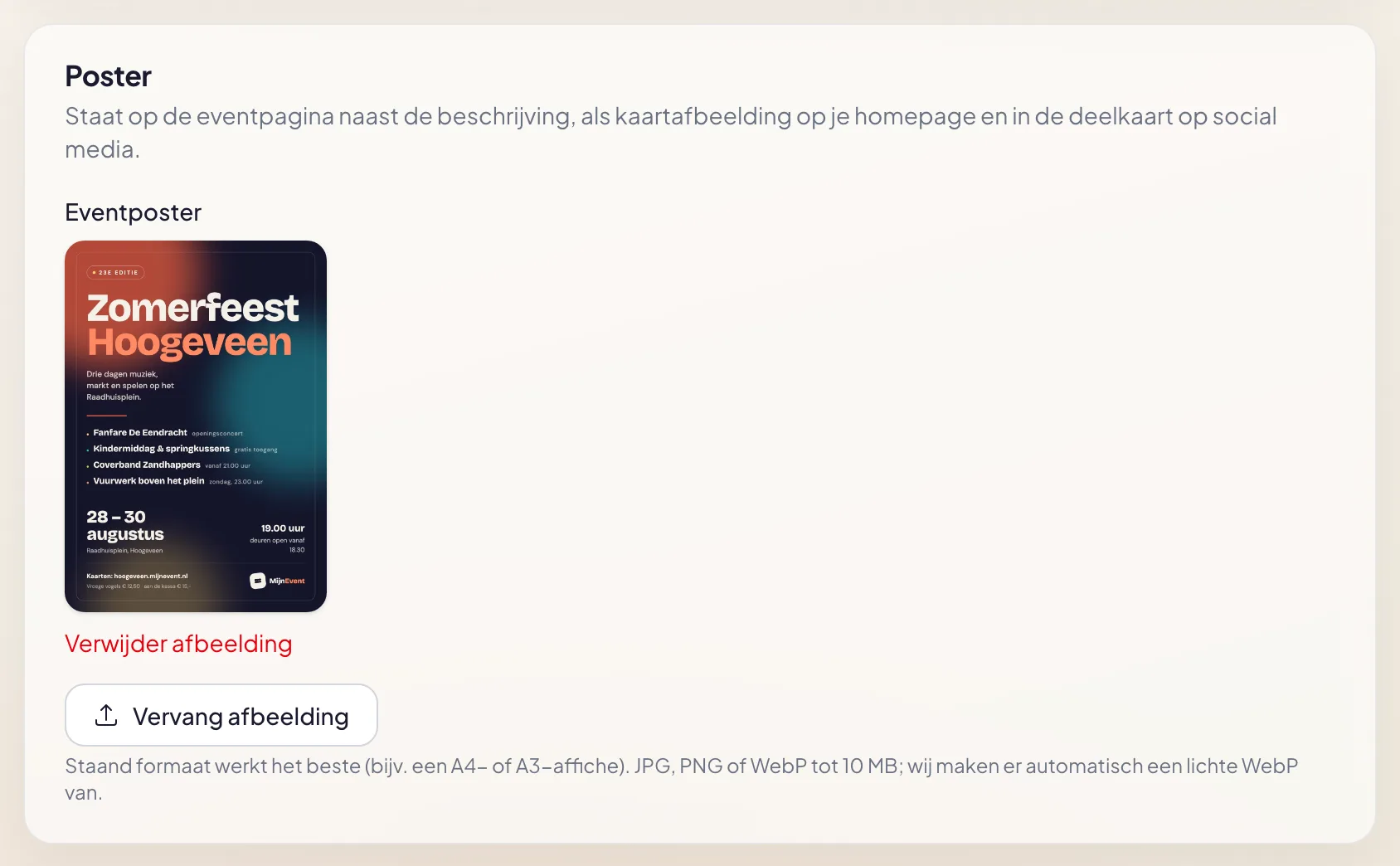
![The poster panel in the dashboard with an uploaded portrait poster in the preview and buttons to replace or remove it](https://regify-mijnevent.s3.eu-central-1.amazonaws.com/blog/inline/eventposter-upload.webp)*The poster panel shows the portrait artwork straight away, with buttons to replace or remove it.*

# Replacing and removing

New version of the poster, because a sponsor joined or a time changed? Just upload it again. Every upload gets its own file name, which also rebuilds the social preview. That solves the problem that otherwise follows people around for days: you replaced the poster, but WhatsApp keeps showing the old one.

Want it gone entirely? One button removes it and the page falls back to its regular layout.

# A few practical tips

- **Make the key information large.** On a phone your poster is about the height of a hand. What is still readable on A3 is not readable at 360 pixels.
- **Do not rely on the poster alone.** Fill in date, time, venue and price in the actual fields. Search engines, calendar apps and screen readers read those fields; they do not read text inside an image.
- **Keep the design yours.** If you want the whole page to feel more like your club, set colours and logo in your branding settings; the poster stands apart from that.

# In short

- Upload the portrait poster once with your event.
- It appears on the event page, the overview card, in the widget and in the social preview.
- Straightening, resizing and conversion to WebP happen automatically, including a small variant.
- A new upload refreshes the social preview as well; one button removes it.

Already have artwork sitting ready for your next event? Put it up — it is the fastest improvement you can make to your event page today.

   Frequently asked questions

## Frequently asked questions

## Which formats and file sizes can I upload?

  JPG, PNG or WebP up to 10 MB, with a long edge between roughly 600 and 8000 pixels. A portrait format works best, because the poster sits beside the text rather than as a wide band above it.

## Do I have to resize the poster myself?

  No. The upload is straightened using the EXIF orientation, resized to a maximum of 1600 pixels on the long edge and stored as WebP, plus a small variant for the overview cards. A small source image is never enlarged.

## Will my old social preview stick around when I upload a new poster?

  No. Every upload gets its own file name, which rebuilds the preview image and cleans up the old version.

## Can I remove the poster again?

  Yes. One button removes it and the page falls back to the regular layout without a poster.

  [    Back to blog ](https://mijnevent.nl/en/blog) 

  MijnEvent

## Read more

 [ ![](https://regify-mijnevent.s3.eu-central-1.amazonaws.com/blog/covers/waiting-list-for-a-sold-out-event.webp) waiting list 

 Jasper Koers · 14 September 2026 · 6 min read

## Who is on the waiting list? Now you can see

The waiting list already worked on its own: sold out, someone signs up, and the moment a ticket frees up the email goes out. You just could not look inside it. Now you can — with names, positions and a button to email them yourself.

 ](https://mijnevent.nl/en/blog/waiting-list-for-a-sold-out-event) [ ![](https://regify-mijnevent.s3.eu-central-1.amazonaws.com/blog/covers/change-the-email-address-on-an-order.webp) orders 

 Jasper Koers · 14 September 2026 · 4 min read

## A visitor gave the wrong email address — now what?

A typo in an email address used to mean a manual detour. You can now change the address on the order yourself, and the tickets go out again straight away with you in cc.

 ](https://mijnevent.nl/en/blog/change-the-email-address-on-an-order) [ ![](https://regify-mijnevent.s3.eu-central-1.amazonaws.com/blog/covers/share-a-preview-before-publishing.webp) draft 

 Jasper Koers · 14 September 2026 · 4 min read

## Let your board look before you publish

A draft event used to be visible only to people with a management account. With a preview link you send the real page to your board or your client, with a clear banner and nothing on sale.

 ](https://mijnevent.nl/en/blog/share-a-preview-before-publishing) 

   MijnEvent

## Ready to get started?

Create a free account and sell your first tickets today.

 [Start free](https://mijnevent.nl/registreer) [Pricing](https://mijnevent.nl/en/pricing)