
Short answer
You can now put the sale of your gift card on your own website. You paste two lines of code on a page; your visitor chooses an amount there, writes a message and pays. After paying they return to your page.
<div data-mijnevent-giftcard></div>
<script src="https://yourstudio.mijnevent.nl/embed.js" async></script>
Why on your own site
A gift card is rarely a planned purchase. Someone is looking for a present, lands on your website and thinks: that is nice. That is the moment. If they first have to click through to another site, you lose part of those people.
Until now the gift card only lived on your ticket shop, at an address like yourstudio.mijnevent.nl/cadeaukaart. You could link to it, nothing more. For tickets, courses and your web shop you could already put a widget on your own site. For the gift card you now can too.
What it looks like
The widget is the same purchase page as on your ticket shop, without header and footer, in your branding. It grows with the content, so you do not get a scroll bar in a little frame.
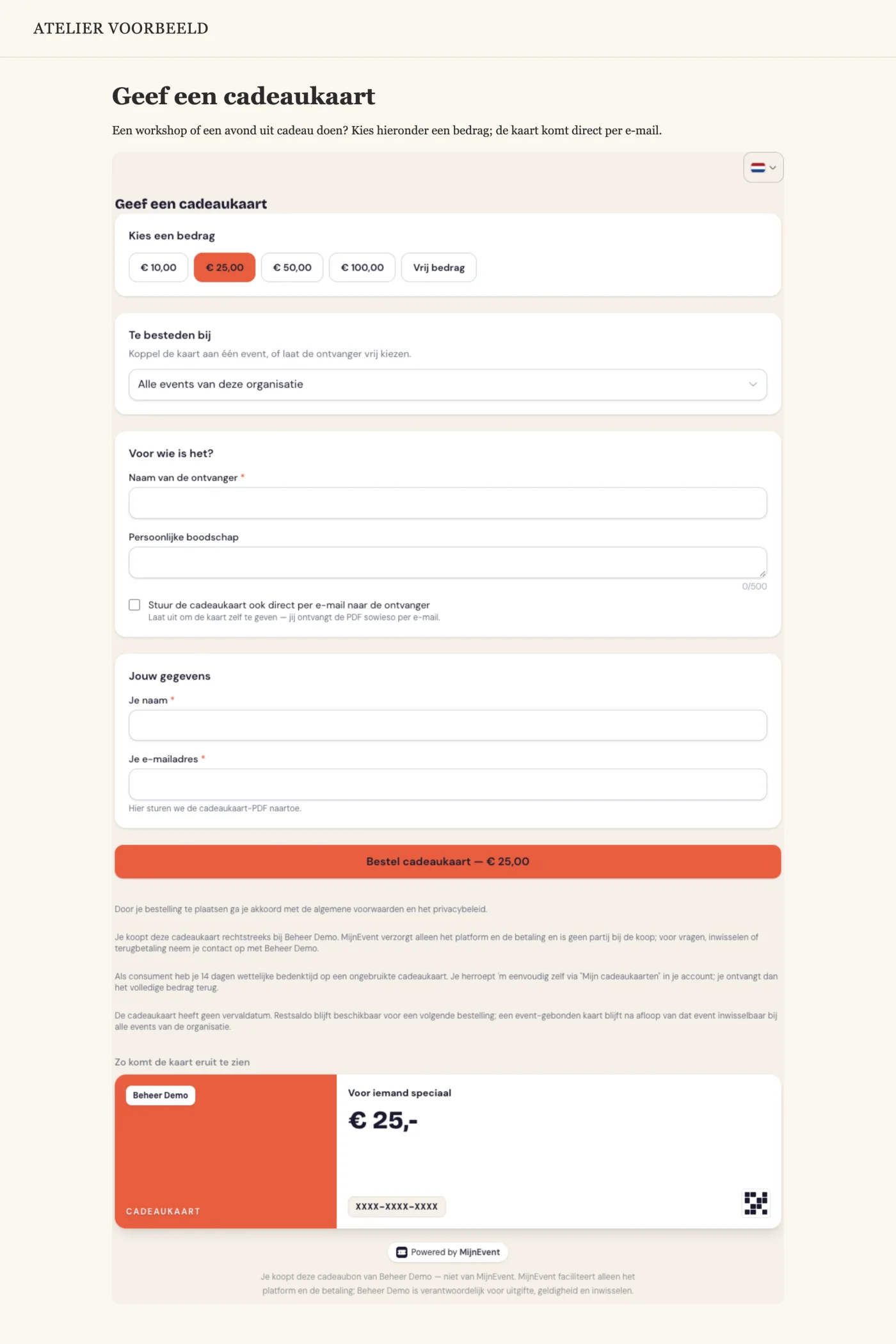
The buyer:
- chooses an amount or types one;
- writes a personal message and fills in who the card is for;
- pays with iDEAL | Wero or another payment method;
- receives the card by email, and returns to your site through the thank-you page.
Payment opens in the main window, not in the frame: that way it works with every bank without trouble.
Where to find the code
In your dashboard under Integrations. Choose Gift card under "What do you want to show?" and copy the code. If the option is not there, switch on gift cards in your settings first.
Does someone else manage your website? Then you send the code with instructions straight to your web builder from the same page.
Good to know
- If you switch gift cards off for a while, the widget shows a tidy message instead of an error page. You do not have to remove the code from your site.
- The terms and the right of withdrawal are in the widget, just like on your ticket shop. The buyer agrees to them when ordering.
More about what the gift card can do, from branding to remaining balance, is on the page about gift cards.