A passkey is the easiest way to log in to MijnEvent. Your laptop or phone asks for your fingerprint, your face or your PIN, and you are in. No login link in your mail, no code from an app.
A passkey is also safer than a code. It only works on your organisation's MijnEvent address, so a fake login page can do nothing with it. That is why a passkey counts as two-factor authentication (2FA) for us.
The screenshots show the Dutch dashboard; the buttons are in the same place in every language.
What do you need?
- A device with a screen lock. A Mac or iPhone with Touch ID or Face ID, a Windows computer with Windows Hello, or an Android phone with fingerprint or PIN.
- Or a password manager that stores passkeys, such as 1Password, Bitwarden or the Apple or Google password managers. Then your passkey is on all your devices.
- A recent browser: Chrome, Safari, Edge or Firefox.
You don't need to install anything.
Step 1: open Settings
In the dashboard, go to Settings and scroll to the Security card. Below your two-factor authentication you will find the Passkeys section.
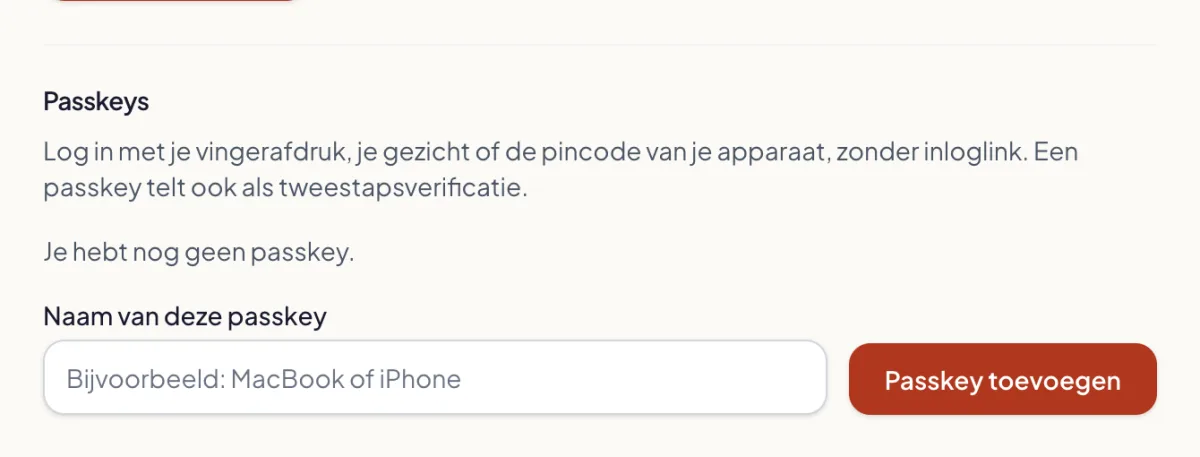
Are you a visitor rather than an organiser? You will find the same section in your account under Settings.
Step 2: add a passkey
Give your passkey a name you will recognise, for example "MacBook" or "work iPhone", and click Add passkey.
Your browser or phone now asks for your fingerprint, your face or your PIN. If you use a password manager, it offers to save the passkey. Confirm, and the passkey appears in the list.
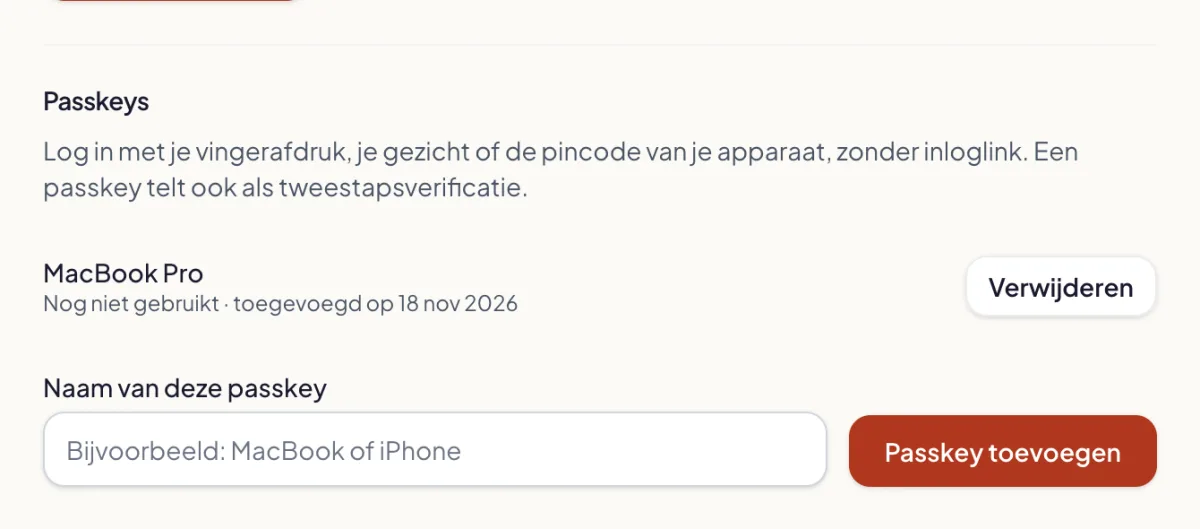
Using several devices without a shared password manager? Add a separate passkey on each device. A device that already has a passkey for your account cannot create a second one; you will see a message about it.
Do you already have two-factor authentication on, with an app or another passkey? Then we first ask you to confirm it before you add or remove a passkey.
Step 3: log in with your passkey
Your organisation's login screen now shows Log in with passkey below the Send login link button. Click it, confirm with your fingerprint, face or PIN, and you are logged in.
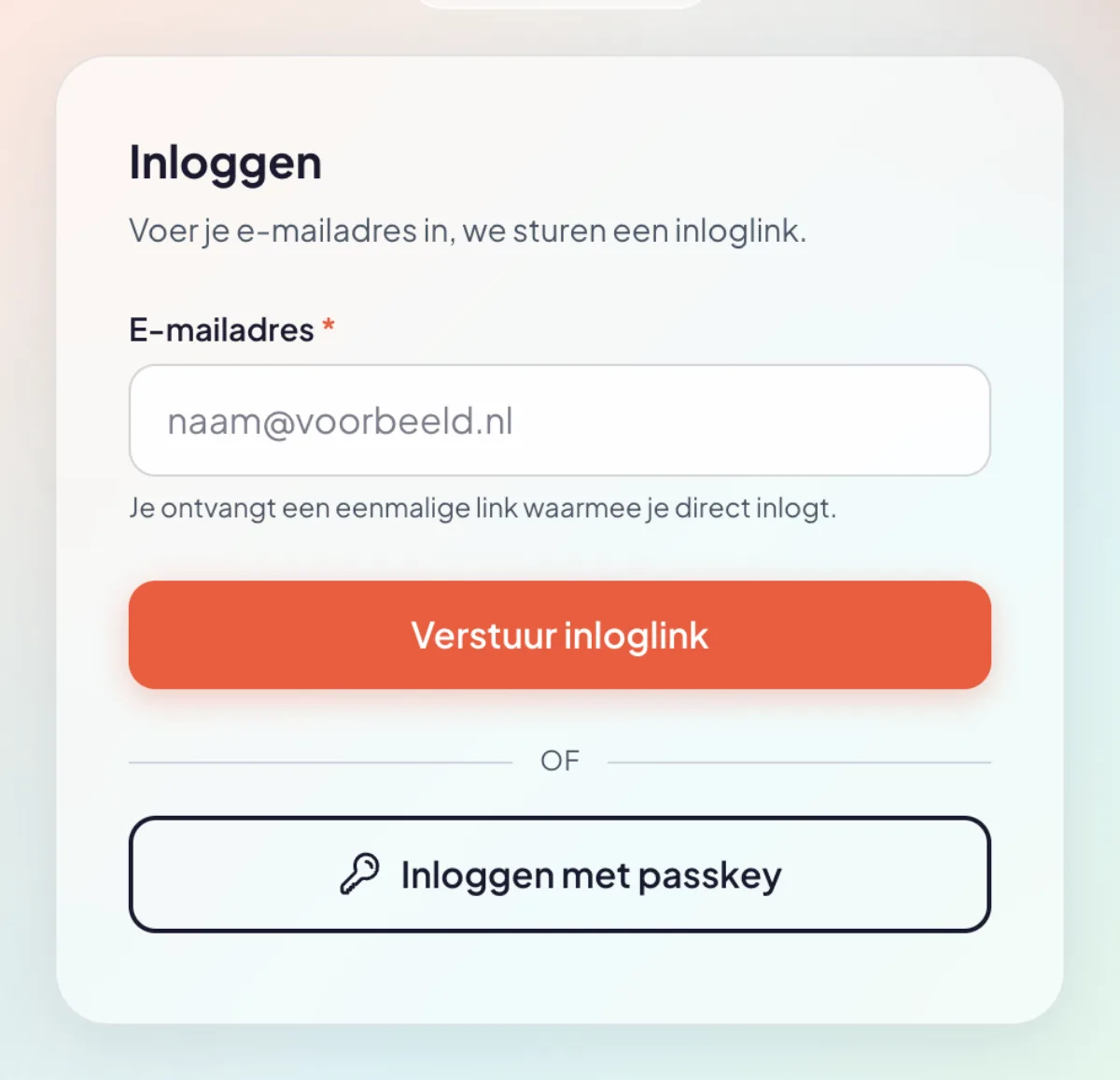
You don't have to enter an e-mail address and no code follows: the passkey already is your second step.
Step 4: confirm after a login link
Did you log in with the login link anyway, for example on a computer without your passkey? Then Confirm your identity appears next. Click Confirm with passkey.
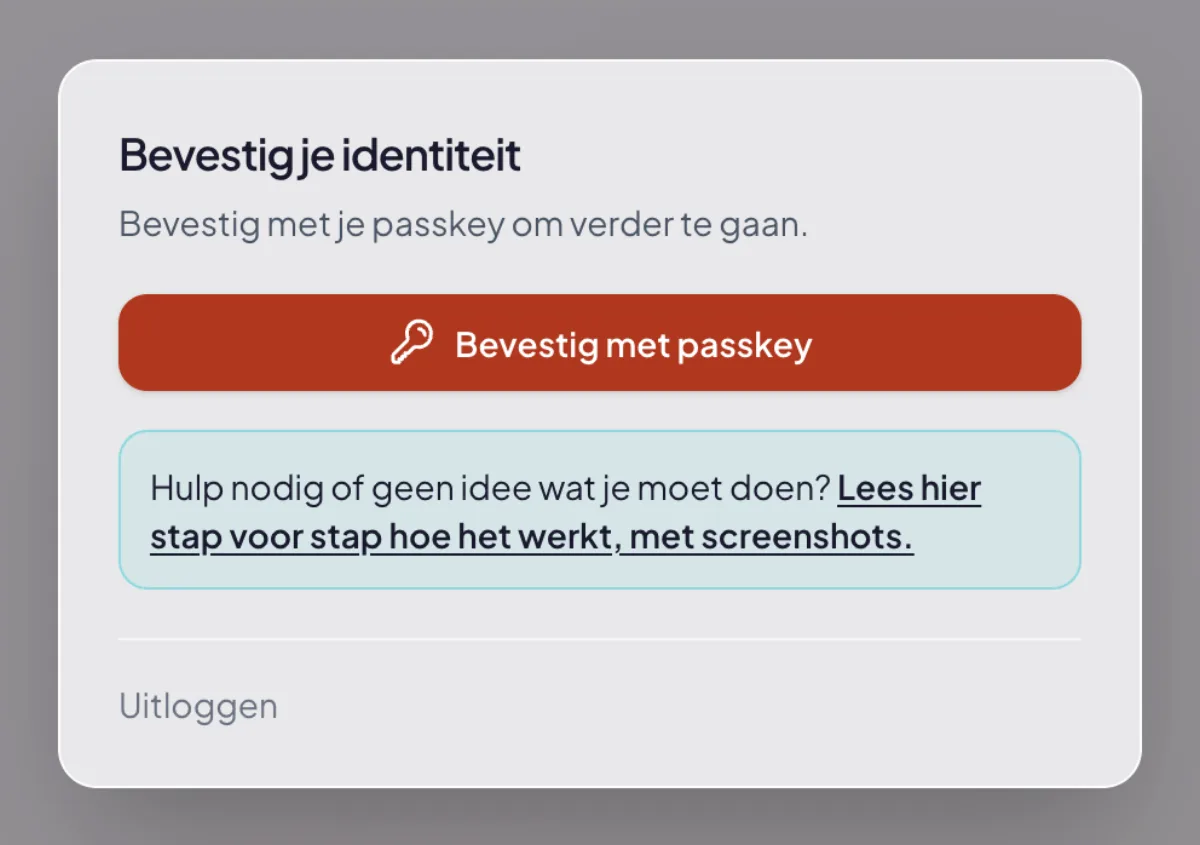
If you also set up an authenticator app, the field for the 6-digit code is shown below. You choose which one to use.
You see the same window for sensitive actions, such as payouts or resetting a team member's two-factor authentication. Your passkey is enough there too.
Step 5: remove a passkey
Got rid of a laptop or phone? In Settings, section Passkeys, click Remove next to that passkey and confirm.
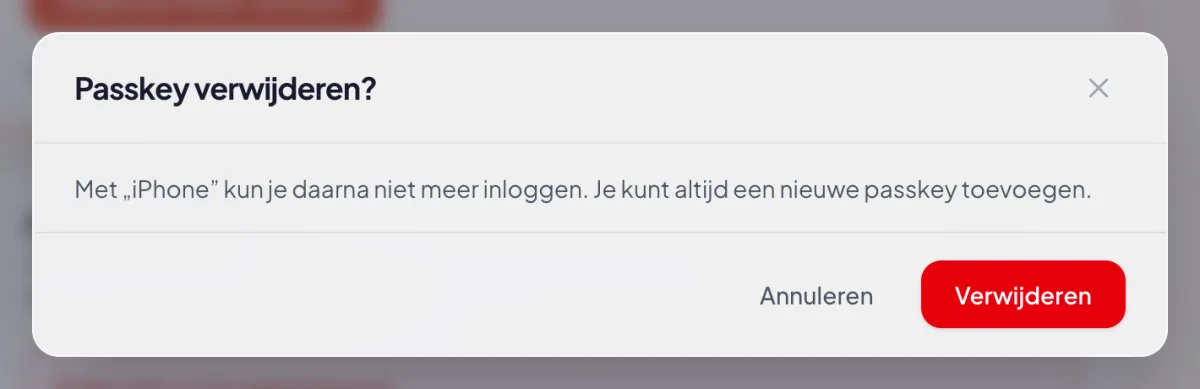
If you remove your last passkey and have no authenticator app, you no longer have two-factor authentication. If your organisation requires 2FA, we ask you to set something up again the next time you log in.
Does your organisation require two-factor authentication?
Then a passkey is enough. After logging in you see the 2FA setup screen; click Set up a passkey instead there and follow step 2. An authenticator app is fine too, and you can use both.
The requirement only applies to team members in the dashboard. Visitors decide for themselves whether they use a passkey or 2FA.
Was your two-factor authentication reset?
If a manager or the owner resets your two-factor authentication, your passkeys are removed too. Log in with your e-mail address and the login link and add a new passkey with the steps above. Remove the old MijnEvent passkey from your password manager, it no longer works.
Prefer an authenticator app after all? Read Set up two-factor authentication: step by step.