Two-factor authentication (2FA) makes sure only you can get into your dashboard account, even if someone has access to your mailbox. After you log in, MijnEvent asks for a code from an app on your phone. Without that phone, nobody gets in.
Never done this before? No problem. Below is every screen you will see. Allow five minutes. The screenshots show the Dutch dashboard; the buttons are in the same place in every language.
What you need
- Your phone.
- An authenticator app. It creates the codes. Pick one, they are free:
- Google Authenticator (iPhone and Android)
- Microsoft Authenticator (iPhone and Android)
- Authy (iPhone and Android)
- Already use a password manager such as 1Password or Bitwarden? It can usually do this too.
- Your computer, logged in to the MijnEvent dashboard.
Install the app first from the App Store or Google Play. You do not need to create an account in the app.
Was your 2FA reset? Read this first
Did a manager or the owner of your organisation reset your two-factor authentication, for example because you have a new phone? Then:
- Your old codes and recovery codes no longer work.
- You can log in with your e-mail address and the login link, without a code.
- In your authenticator app, remove the old MijnEvent account, so you don't type the wrong code later.
- Then follow the steps below to set up 2FA again.
Does your organisation require 2FA for the whole team? Then you see the setup screen from step 2 right after logging in, and you can only continue once you have finished it.
Step 1: open Settings and click Enable 2FA
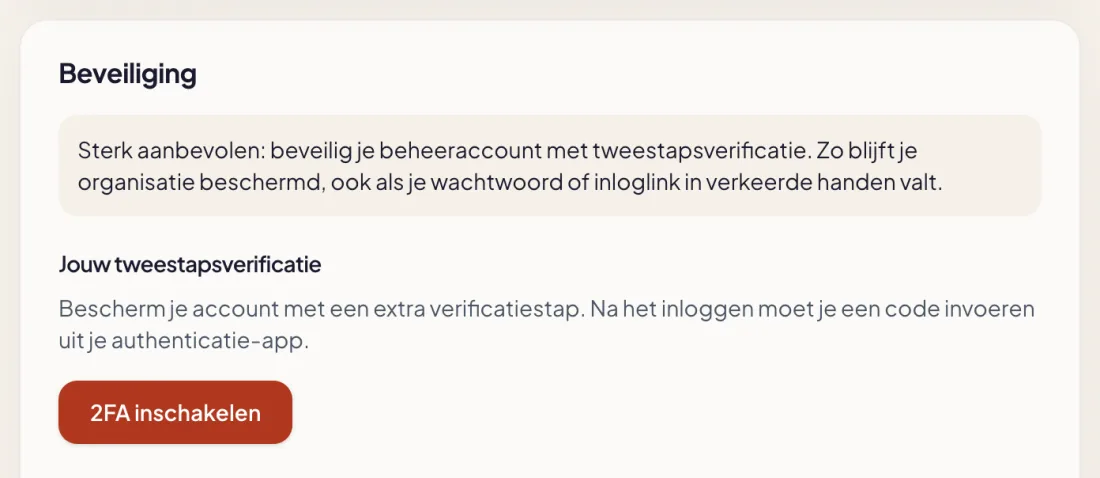
In the dashboard, go to Settings and scroll to the Security card. Under "Your two-factor authentication" you will find the button Enable 2FA. Click it.
Step 2: scan the QR code with your app
A QR code appears. Open your authenticator app on your phone:
- Google Authenticator: tap the plus sign and choose Scan a QR code.
- Microsoft Authenticator: tap the plus sign, choose Other account and scan the code.
- Authy: tap Add account and scan the code.
Point your phone's camera at the QR code on your screen. The app adds the account and shows a six-digit code, with a small bar or circle counting down.
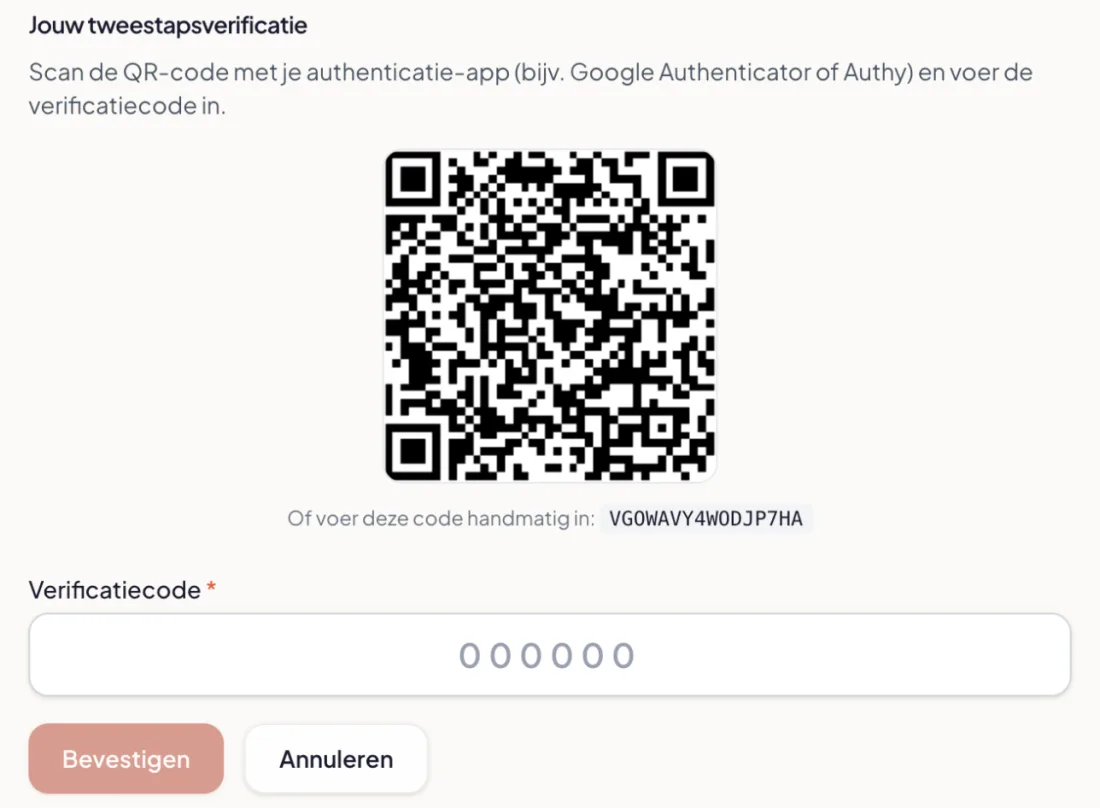
Scanning doesn't work? Below the QR code is a code of letters and numbers. In your app, choose "Enter a setup key" (or "Enter code manually") and type it in.
Step 3: enter the code from the app
Type the six digits your app shows into the Verification code field and click Confirm.
The code changes every 30 seconds. Did it expire while you were typing? Just use the new one. If you get an error, check that your phone sets its time automatically: a clock that is a few minutes off produces wrong codes.
Step 4: keep your recovery codes
After confirming, you get 8 recovery codes. They are your spare key for when your phone is lost, broken or replaced.
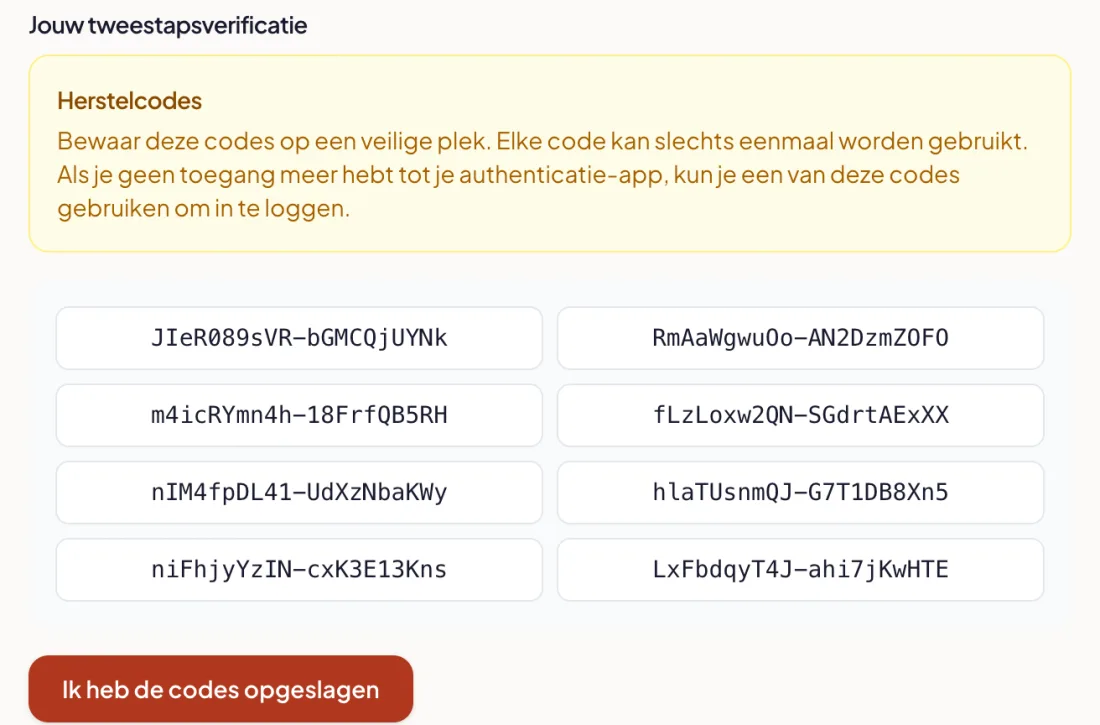
- Don't keep them only on your phone. Put them in your password manager, or print them and keep them in a drawer.
- Each code works once.
- You see them only once, so save them now.
Then click I have saved the codes. It now says "2FA is enabled". Done.
Step 5: how you log in from now on
Logging in works as before: enter your e-mail address and click the login link in your mail. Then Confirm your identity appears. Open your authenticator app, type the code shown for MijnEvent and click Verify.
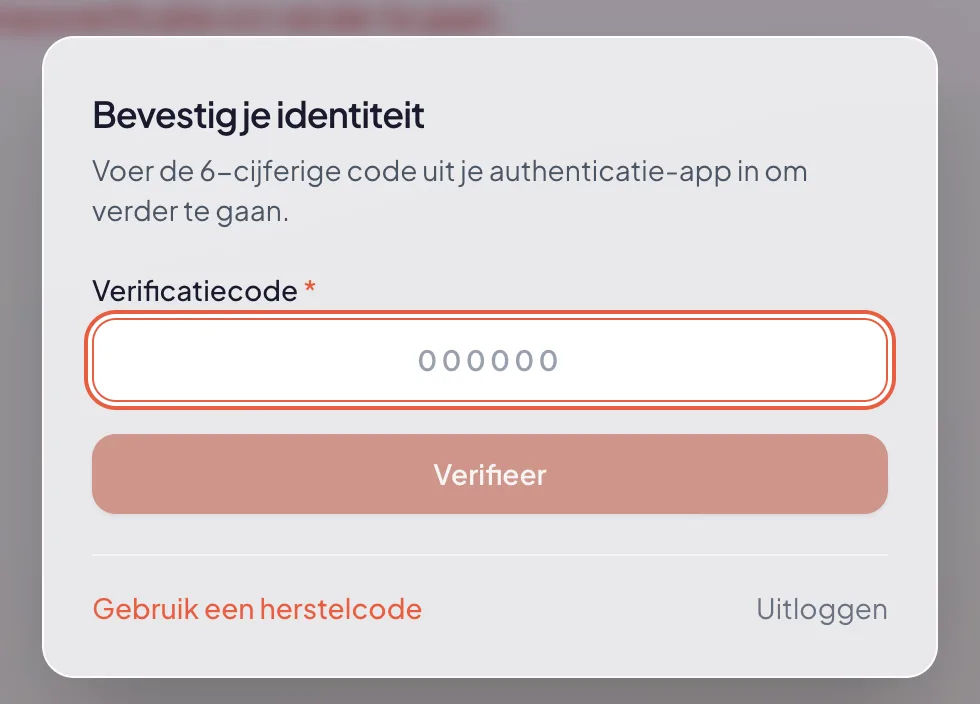
Phone not at hand? Click Use a recovery code and enter one of your recovery codes.
When you log in on a new computer or browser, we also ask once for a code that we send by e-mail. That is different from the code in your app: the e-mail code confirms the device, the app code confirms it is you.
Lost your phone and no recovery codes left?
Ask a manager or the owner of your organisation to reset your two-factor authentication. They do this in the dashboard under Team, with the Reset 2FA button next to your name. You then get an e-mail and can set up 2FA again with the steps above.
Are you the owner yourself and locked out? Contact MijnEvent.
Read more about logging in without a password in Magic login and two-factor authentication.
Rather not use an app? With a passkey you log in with your fingerprint or face, and it counts as two-factor authentication too. Read Log in with a passkey.