# AI helpers in your dashboard: the setup work handled, the control yours — MijnEvent

  [Home](https://mijnevent.nl/en) / [Blog for event organizers](https://mijnevent.nl/en/blog) / AI helpers in your dashboard: the setup work handled, the control yours   modules ai beheer 

# AI helpers in your dashboard: the setup work handled, the control yours

Two AI assistants in your dashboard: one builds your event while you type, the other drafts a confirmation email. Both hand you a draft you still adjust — and if the AI goes down, you simply carry on.

 [Jasper Koers](https://mijnevent.nl/en/author/jasper-koers) · 16 June 2026 · 4 min read 

  ![](https://regify-mijnevent.s3.eu-central-1.amazonaws.com/blog/covers/ai-hulpjes-in-het-beheer.webp)  Photo: [Fachrizal Maulana](https://unsplash.com/@fachrizalm?utm_source=MijnEvent&utm_medium=referral) / [Unsplash](https://unsplash.com/?utm_source=MijnEvent&utm_medium=referral)    In short

- Two AI assistants in the dashboard: one builds your event as you chat, the other drafts a confirmation email.
- Everything arrives as a draft you edit and only publish or send after your approval.
- If the AI is unavailable you simply carry on with the regular form — the AI is a bonus, not a dependency.

  Lately an AI assistant has appeared in a few places in your dashboard. Not to take the work out of your hands, but to take the **setup work** out of your hands — that blank-screen moment where you have to start from nothing. The assistant makes the first move; you keep control. Because everything the AI makes is a **draft that you adjust, complete, and only publish or send once you're happy with it.**

*Note: the screenshots below show the Dutch interface — the flow is identical in every language.*

# Create an event just by describing it

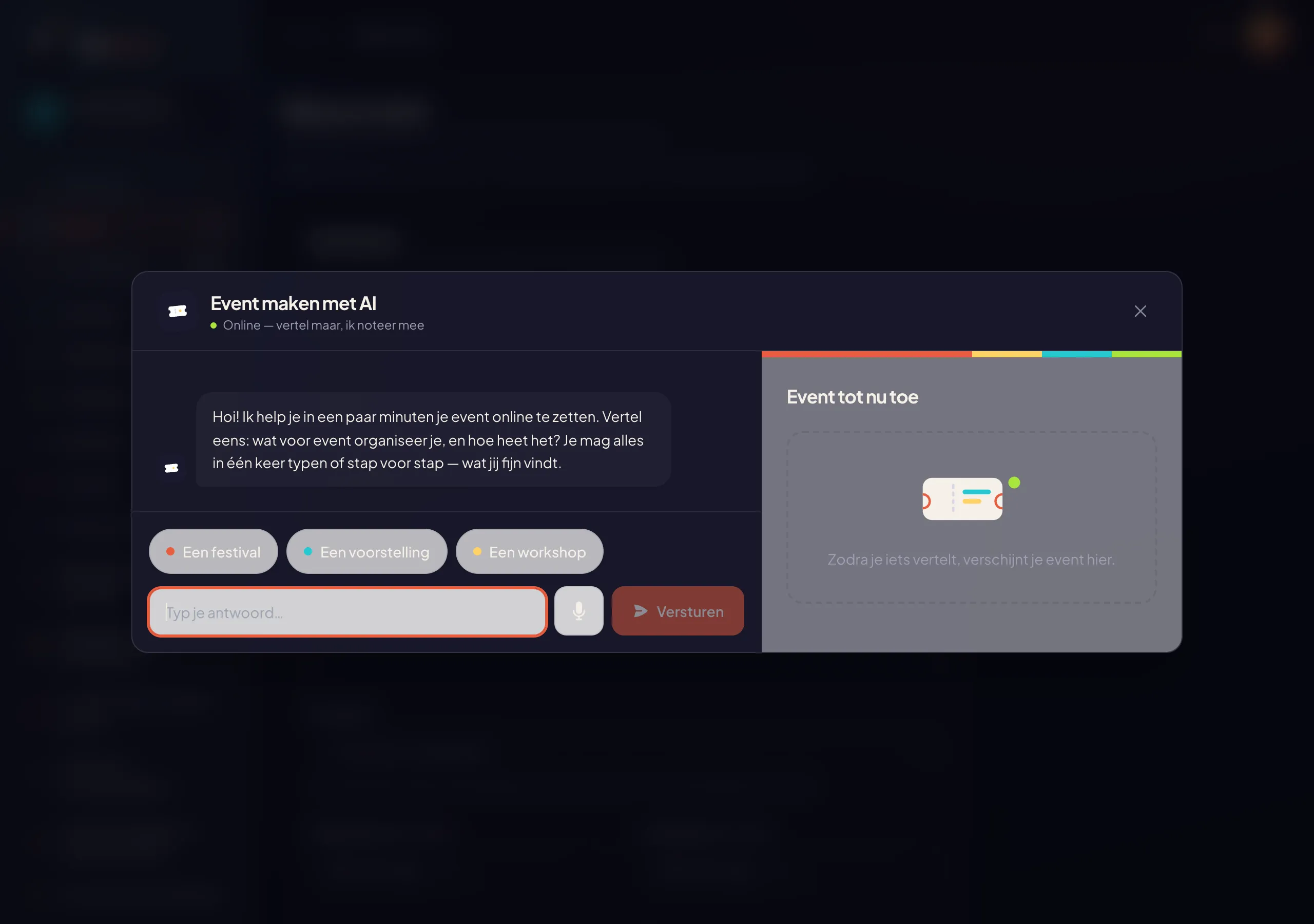
Go to **New event** and you'll see an invitation at the top: *"Answer a few questions — the assistant does the rest."* Click **Create your event with AI** and a conversation opens. You simply type what kind of event you have in mind — a festival, a show, a workshop — and the assistant asks follow-up questions: when, where, which ticket types, what they cost.

As you type, a **live overview** builds up on the right: "Event so far", with the days, the ticket types, any time slots and whether donations are switched on. So you watch your event take shape instead of having to check it afterwards. Happy with it? Confirm in the chat and the assistant sets your event up as a **draft** — including the ticket types you discussed. From there it's simply your event: you open it in the normal event screen, change what you want, and publish when it's ready. Prefer to do it by hand? You always can; here's how to [create your first event step by step](/en/blog/creating-your-first-event).

![The AI wizard builds your event while you describe it in the chat](https://regify-mijnevent.s3.eu-central-1.amazonaws.com/blog/inline/ai-event-wizard.webp)*The AI wizard builds your event while you type — the overview on the right grows along.*

# A confirmation email the assistant drafts for you

The second helper lives in an event's email settings. The confirmation email is the first thing a buyer sees after paying, and coming up with a good opening line is just as much a blank-screen moment. So let the assistant suggest a **draft confirmation email**: a subject, a greeting, the body and a sign-off, tailored to your event. You don't get a sent email — you get a filled-in form you edit to taste and save.

It's exactly the same idea as [customising your confirmation emails per module](/en/blog/customize-confirmation-emails-per-module): the default texts are complete and bilingual, the AI gives you a starting point in your tone, and you decide the final text.

# You keep control

Notice the pattern? Neither assistant does anything irreversible. The event arrives as a **draft**, not a published page. The confirmation email arrives as a **draft design**, not a sent message. The AI speeds up the first eighty percent of the typing; the last — and most important — step, "is this right and can it go live?", always stays with you.

# AI down? You simply carry on

Important for a platform you need to be able to rely on: the AI is an **extra, not a dependency.** If the assistant is briefly unavailable, you see a tidy notice — *"The AI assistant is unavailable for a moment. Use the regular form, or try again later."* — and you just use the classic creation form or the default email texts. The dashboard keeps working undisturbed; nothing breaks. The AI wizard is literally a button at the top of the regular form, which is always there.

# How to use it

1. Open **Dashboard → Events → New event** and click **Create your event with AI**.
2. Tell the chat what kind of event you're organising and answer the questions; check the overview that grows along.
3. Confirm, open the draft event and adjust what you want before you publish.
4. In the event's email settings, let the assistant suggest a draft confirmation email — and edit it in your tone.

More features that lighten your dashboard are in the [module overview](/en/modules).

   Frequently asked questions

## Frequently asked questions

## Does the AI publish my event or send emails automatically?

 No. The AI always produces a draft: the event arrives as an unpublished draft and the confirmation email as a draft you edit. You review and approve every step before anything goes live or is sent.

## What happens if the AI assistant is unavailable?

 You simply carry on with the regular creation form or the default email texts. The AI is an extra, not a dependency, so the dashboard keeps working undisturbed.

## Where do I find the AI event wizard?

 In your dashboard under Events, New event: click 'Create your event with AI' at the top of the regular form and describe your event in the chat.

  [    Back to blog ](https://mijnevent.nl/en/blog) 

  MijnEvent

## Read more

 [ ![](https://regify-mijnevent.s3.eu-central-1.amazonaws.com/blog/covers/automatic-membership-renewal-dutch-law.webp) memberships 

 Jasper Koers · 27 July 2026 · 6 min read

## Automatic membership renewal: collecting fees within Dutch renewal law

Automatic renewal saves your club a pile of chasing work, but the law has rules about cancelling. Here is how renewal works in MijnEvent, and how to keep it clean.

 ](https://mijnevent.nl/en/blog/automatic-membership-renewal-dutch-law) [ ![](https://regify-mijnevent.s3.eu-central-1.amazonaws.com/blog/covers/ontruimingsverslag-evenement-bewijsstuk.webp) safety 

 MijnEvent · 27 July 2026 · 5 min read

## The evacuation record: why the day after your event matters for the next permit

An evacuation — real or drilled — is only finished once it is on paper. What belongs in an evacuation record, why the municipality asks for it, and how to make the record write itself instead of reconstructing it afterwards?

 ](https://mijnevent.nl/en/blog/evacuation-record-event-evidence) [ ![](https://regify-mijnevent.s3.eu-central-1.amazonaws.com/blog/covers/knmi-weeralerts-veiligheidsplan.webp) safety 

 MijnEvent · 27 July 2026 · 3 min read

## Weather monitoring in your safety plan: how KNMI warnings land in your alerts and logbook automatically

Almost every safety-plan format has a 'weather monitoring' section — and almost nobody fills it in concretely. The Safety &amp; Permit module pulls the KNMI warning code for your event location every hour and turns it into a demonstrable process.

 ](https://mijnevent.nl/en/blog/knmi-weather-alerts-event-safety-plan) 

   MijnEvent

## Ready to get started?

Create a free account and sell your first tickets today.

 [Start free](https://mijnevent.nl/registreer) [Pricing](https://mijnevent.nl/en/pricing)