Short answer
A membership, season ticket or subscription can now carry a photo. The photo is on the card in Apple Wallet and Google Wallet and appears on the inspector's screen when scanning. The member adds it once; swapping only goes through you.
A QR code is forwarded in seconds
A yearly pass for the swimming pool, a season ticket for the home games, a subscription to the zoo: they are in someone's name, but the card itself is a QR code. And you forward a QR code to your neighbour in ten seconds.
Most organisations solve that with a plastic card with a photo on it. That works, but it costs printing, a desk and a drawer full of cards nobody collected. The digital card did not have that advantage, until now.
How it works
1. It is on by default. Every card type has "Photo on the card" and "Photo required" ticked. If you do not want it for a card type, such as a donor card, you switch it off there.
2. The member adds a photo. The email with the card contains a link. The member picks a photo, we crop it to a square and put it on the card.
3. The photo is on the card. In Apple Wallet and Google Wallet it sits next to the name. If the card was already on the phone, it updates by itself.
4. The inspector sees it when scanning. Next to "valid" or "expired" the photo is shown large. One glance is enough. This works in the browser check-in today; the scan app for iOS and Android follows.
Add once, then locked
This is the part that matters. If a member could replace the photo themselves, the photo would be pointless: you put your neighbour's photo on it and pass on the card.
That is why the member can add the photo once. After that the page is locked and only shows the photo, with a reference to you.
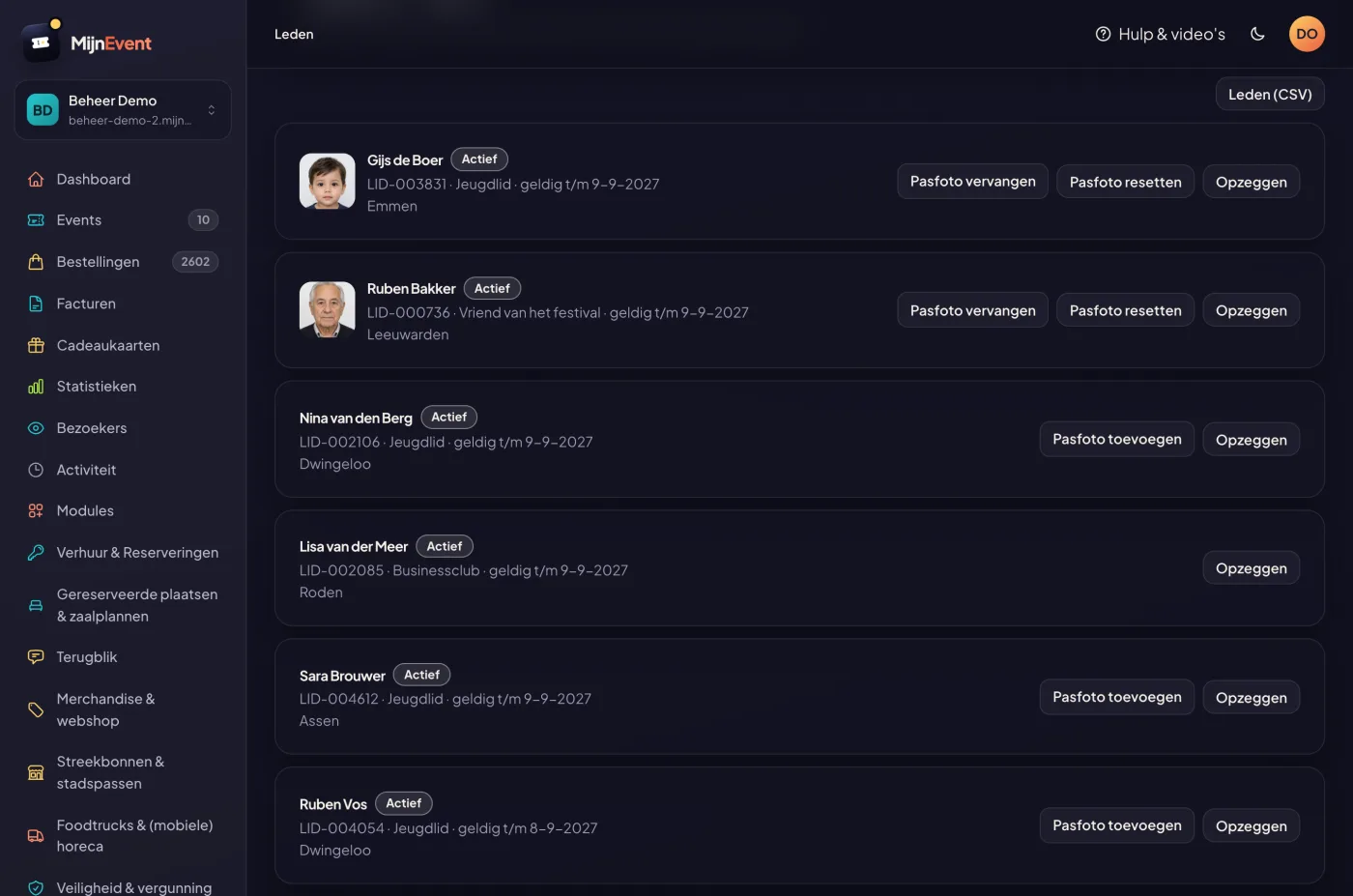
Does someone rightly want a different photo, because the first is blurry or ten years old? Then you choose Reset photo in the member list. The member can then add a new one through the same link. You can also replace it yourself, for example at the desk.
Careful with a photo
A photo is personal data, and that is how we treat it:
- the photo is stored privately and has no public address;
- the dashboard and the scanner get a link that expires after a short time;
- we store a reduced, cropped version, without the data a phone puts into a photo (such as the location);
- the photo is removed once the membership ends, and when the visitor asks for deletion.
Tell your members at sign-up what you use the photo for. For a card type with a photo we do that too, on the sign-up page.
Who is this for?
Anywhere a card is in someone's name and used more than once: zoos and swimming pools with a yearly subscription, sports clubs with season tickets, museums and theatres with a friends' pass.
Getting started
The photo is part of the Memberships & season tickets module and costs nothing extra. Switch it on for the card type where you want it; existing cards keep working and get the photo as soon as a member adds it.