One show, twice on the same day
A gymnastics club running its annual show twice. A drama society with a matinee and an evening performance. A brass band playing the autumn concert at 15:00 and again at 20:00, because the hall is too small otherwise. Same show, same hall, same prices — only the time differs.
Until recently that forced a choice where neither option was right: create two separate events (two pages, two links, two sets of sales figures to track) or one event with a single time, leaving half of your audience at the door at the wrong moment.
Now you decide per event how to handle times. Set the event to Performances and visitors first pick which performance they want, right at the top of the event page, before they pick their tickets.
Spreading or performances
The event form offers two modes:
- Spreading (arrival times) — you distribute visitors across the day, for instance a group every half hour at an open day or a museum. The time is a practical measure against crowding.
- Performances — the time is the product. The visitor deliberately buys a ticket for the matinee or for the evening show.
Behind the scenes it is the same mechanism, with the same capacity per block, the same reservation during checkout and the same check-in. Only the wording and the position on the page follow your choice. Already using time slots? They keep working exactly as they did; there is nothing to convert.
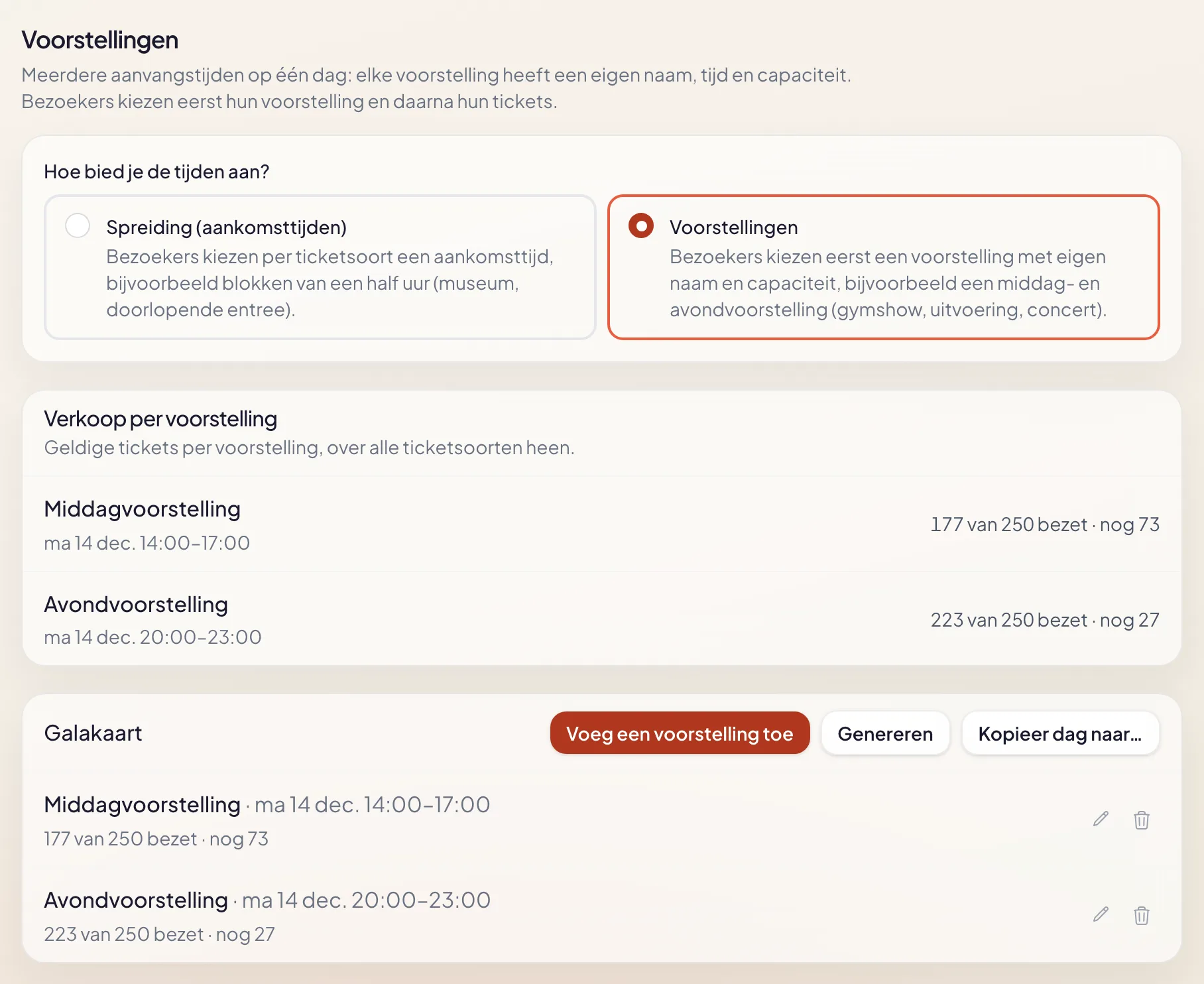 The mode sits at the top; below it the performances with their own capacity and sales.
A name for every performance
A performance gets a name you choose yourself: "Matinee", "Evening show", "Preview", "Dress rehearsal for guests". That name is what your audience sees — on the event page, in the confirmation email, on the ticket, on the wallet pass and in the calendar invite.
The time never disappears in the process. Where there is room it reads "Matinee · Sat 3 Oct 14:00–16:00", so nobody has to rely on the name alone. Leave the name empty and the time window itself becomes the label.
Each performance has its own capacity. The matinee can therefore be sold out while the evening show still has plenty of room — visitors see that the moment they choose, and you can switch on a waitlist for the sold-out one.
What your audience sees
On the event page the row of performances sits at the top, above the ticket types. That order is deliberate: first when, then which ticket. The buyer picks a performance, sees availability, picks their tickets and pays.
The event header lists all start times for that day, so somebody arriving through Google or a shared link immediately sees there are two moments. The structured data that search engines read also knows each performance separately now, with its own start and end time.
At the door
Stewards scan the way they always did. What is new is that the scanner names the performance on the ticket, and gently warns when somebody arrives well outside their performance window: "this ticket belongs to Evening show". It is a warning, not a block — you decide whether to let them in or point them to the right performance.
Your statistics show sales per performance, so you know which of the two is the draw and where your promotion should go.
And when there is no start time at all?
The opposite case is just as common: a street market that runs "all Saturday", an open day you walk into whenever you like. A single clock time then suggests a start that does not exist.
For that, the same form carries a tick box below the date fields: "Show the date only (no start and end time)". Switch it on and the form asks for a date only, while the clock times disappear everywhere: on the event page, on the ticket, in the confirmation email, on the wallet pass, in the calendar invite (an all-day entry) and at Google. If individual activities on such a day do have their own times, those time blocks keep showing them.
Without an explicit sales deadline, ticket sales for such an event now run until the end of the last day, instead of until a start time nobody ever agreed on.
In short
- Two start times on one day do not need two events: set the event to Performances.
- Every performance has its own name, time and capacity; visitors choose at the top of the page.
- The performance travels along to the ticket, the email, the wallet pass, the calendar and the scanner at the door.
- No fixed start? Tick "Show the date only" and the clock times disappear everywhere.
Still building your first event? This walkthrough is a good starting point; choosing between spreading and performances takes two clicks afterwards.