# Link a floor plan and price your tiers: seating setup per event — MijnEvent

  [Home](https://mijnevent.nl/en) / [Blog for event organizers](https://mijnevent.nl/en/blog) / Link a floor plan and price your tiers: seating setup per event   modules reserved-seating dashboard 

# Link a floor plan and price your tiers: seating setup per event

On the new Reserved seating tab you link a floor plan to your event, assign tiers, rows and standing areas to your ticket types, and see before saving whether every seat has a price.

 [Jasper Koers](https://mijnevent.nl/en/author/jasper-koers) · 17 July 2026 · 4 min read 

       In short

- The Reserved seating tab on your event: link a floor plan, map tiers and assign standing areas — all in one screen.
- The coverage check counts along live: a seat without a ticket type cannot be sold, so you see exactly how many seats still lack a price before you save.
- Turn on 'Sell via the floor plan' on a ticket type and buyers pick a seat for that type; it locks once seats have been sold.

  Your hall is drawn, your tiers are tagged, your floor plan is published. Then comes the question that until now could only be answered through the API: **which seat costs what at this event?** There is a screen for that now. Every event has a **Reserved seating** tab — and it lets you set up the entire seated sale without a single line of API knowledge.

# One tab, three steps

The setup follows the order you think in: first the plan, then the types, then the prices.

**Step 1 — link your floor plan.** Pick a published floor plan from the list and click *Link*. A floor plan is reusable: the same plan can serve every next event, with different prices.

**Step 2 — make ticket types seated.** Each ticket type now has a **Sell via the floor plan** checkbox. Turn it on and buyers pick a seat for that type instead of just a quantity. Your existing settings — price, service fees, discount codes — keep working unchanged.
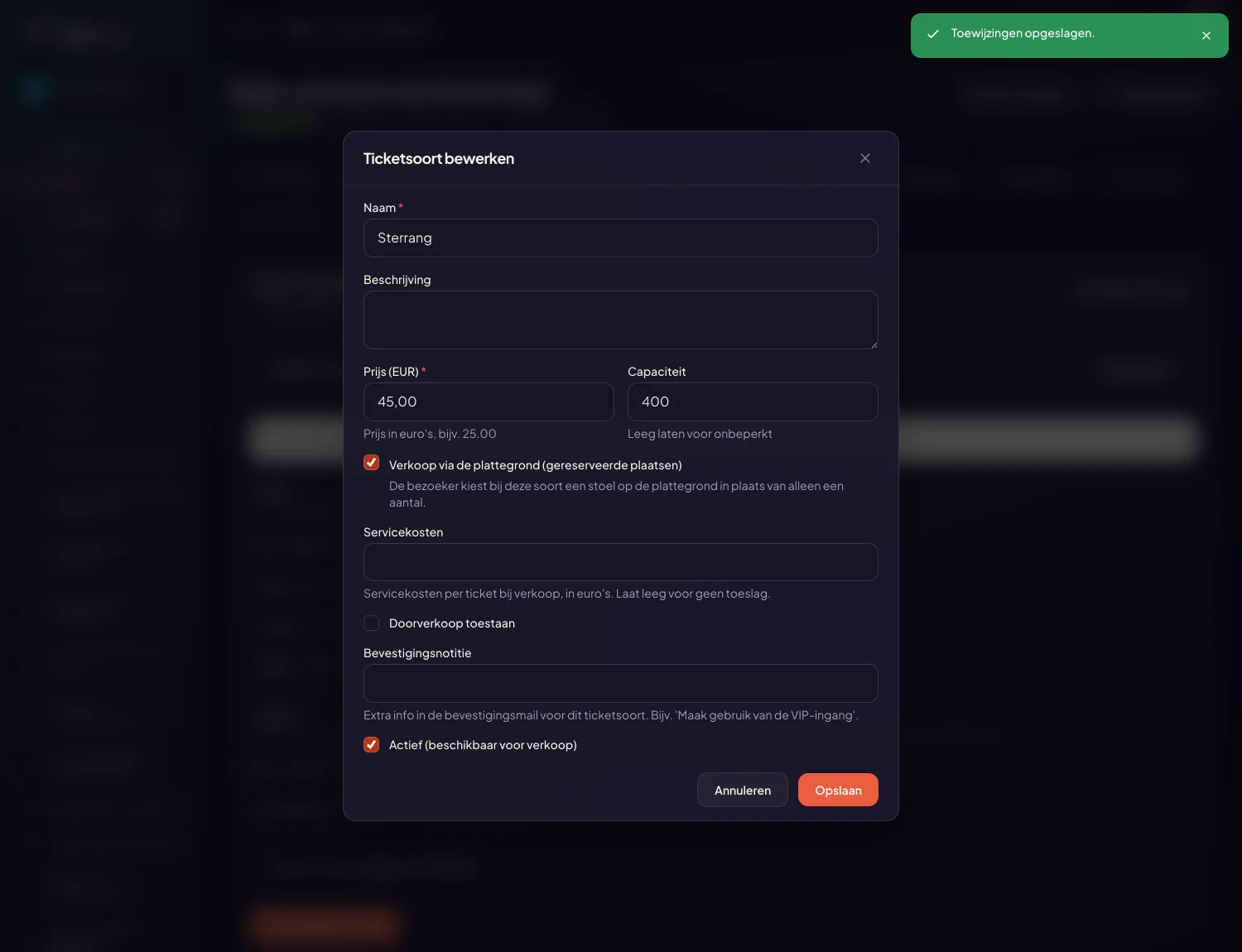
![The ticket type editor with the new 'Sell via the floor plan' checkbox](https://regify-mijnevent.s3.eu-central-1.amazonaws.com/blog/screenshots/seating-inrichting-toggle.webp)*One checkbox makes a ticket type seated. It cannot be turned off once seats have been sold — those buyers have a seat printed on their ticket.*

**Step 3 — assign the tiers.** The screen automatically lists every tier that occurs in your floor plan, with its seat count. For each tier you pick a ticket type; that type's price then applies to all seats in the tier.
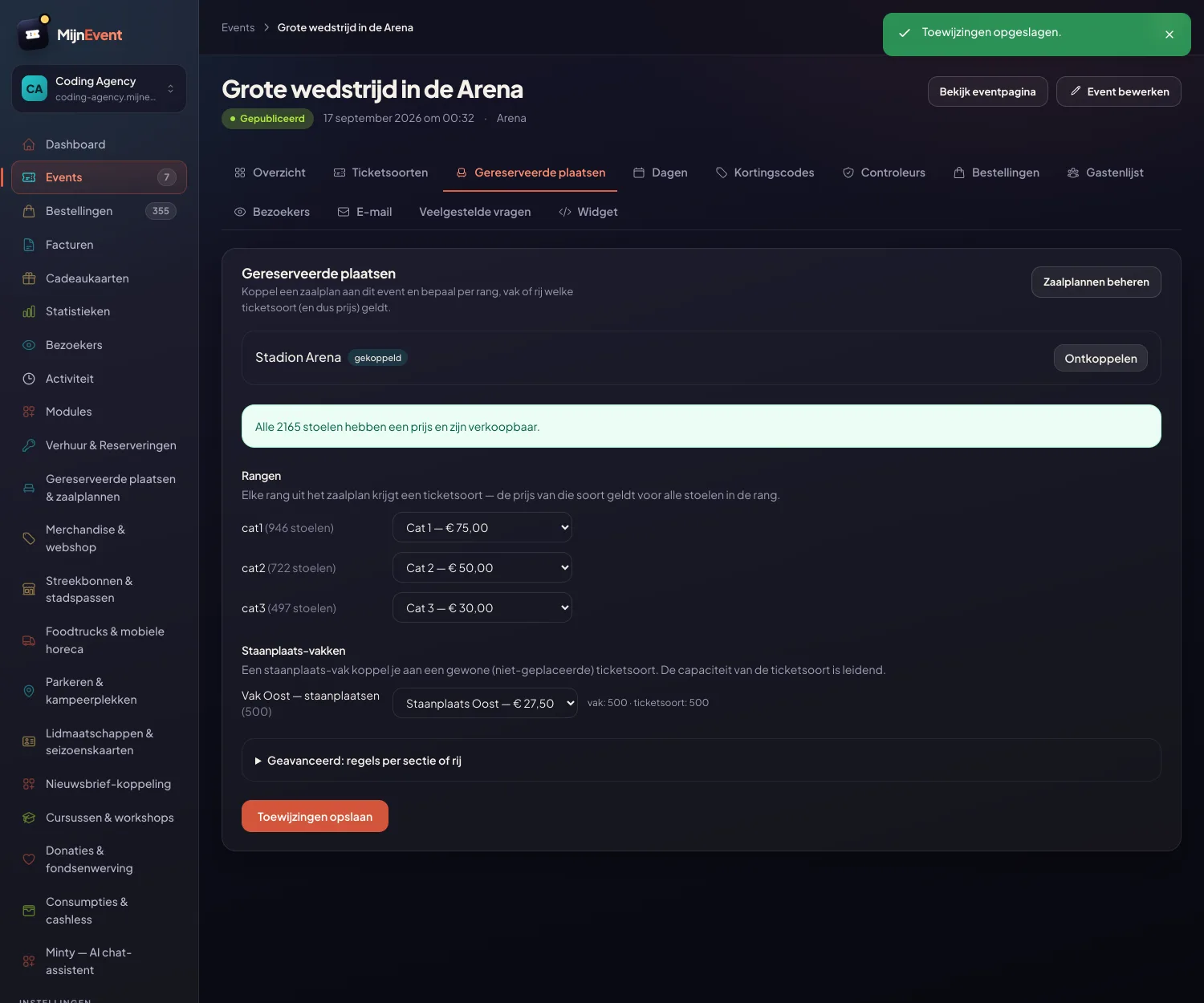
![The Reserved seating tab: tiers and a standing area linked to ticket types, with a green coverage message](https://regify-mijnevent.s3.eu-central-1.amazonaws.com/blog/screenshots/seating-inrichting-stadion.webp)*A stadium with three tiers and a standing area: all 2,165 seats have a price, so the message turns green.*

# Standing areas and seat types

If your floor plan has a **standing area**, you link it to a regular (non-seated) ticket type. The screen shows the capacity of the area and the ticket type side by side — if they differ you see it immediately, and the ticket type capacity is what counts.

For **wheelchair spaces and companions** you can optionally set a different ticket type per seat type. And under *Advanced* live the exceptions: a whole section or even a single row mapped to another ticket type. The order is predictable: a per-seat tier beats a row, a row beats a section, a section beats a seat type.

# The coverage check: no seat without a price

The most important part of the screen may well be the counter at the top. A seat without a ticket type is **not clickable** in the seat picker — and therefore invisible to your revenue. So the screen recalculates live with every change: *"9 of 651 seats have no price yet."* Only when everything is covered does the message turn green.
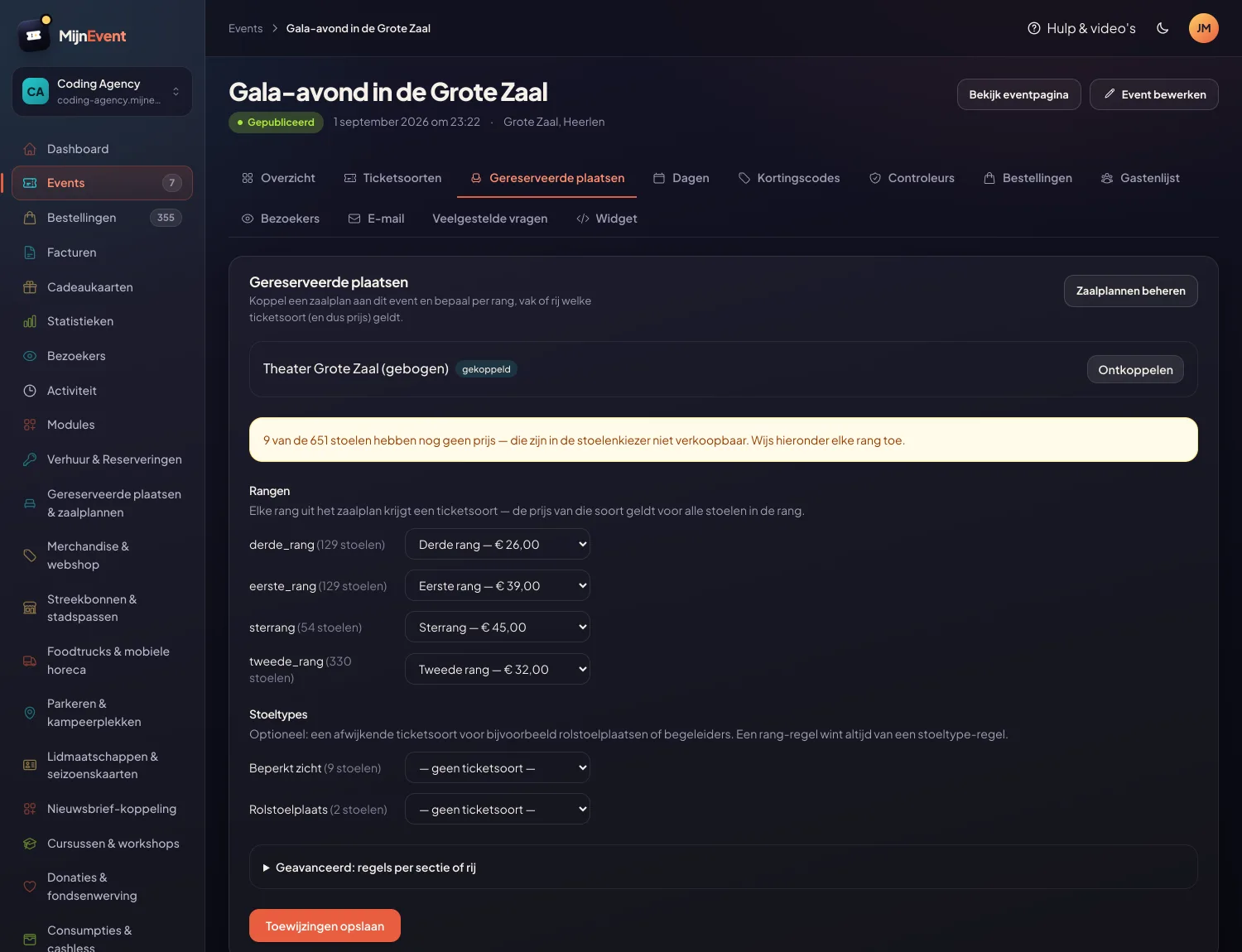
![The coverage warning: 9 of 651 seats have no price yet](https://regify-mijnevent.s3.eu-central-1.amazonaws.com/blog/screenshots/seating-inrichting-dekking.webp)*The counter catches you before saving: this hall still has nine wheelchair and restricted-view seats without a ticket type.*

That check uses exactly the same rules as the visitor's seat picker. What you see as green in the dashboard is what the visitor can buy — there is no gap between the two.

# Guardrails where they matter

A few things the system deliberately blocks. **Unlinking** a floor plan is no longer possible once seats have been sold: those buyers have a seat on their ticket, and we keep that promise. For the same reason *Sell via the floor plan* cannot be switched off on a ticket type with sold seats. And a standing area only links to a non-seated type — and vice versa. Mistakes you used to discover on the day of the sale no longer make it past the save button.

No floor plan yet? Read how to [draw your own hall](/en/blog/seat-map-editor-draw-your-own-hall) — or send us your plan and we set it up for free. And see how [visitors pick their seat](/en/blog/reserved-seating-and-floor-plans) on the [reserved seating module](/en/modules/reserved-seating).

   Frequently asked questions

## Frequently asked questions

## How do I link a floor plan to my event?

 Open your event in the dashboard and go to the Reserved seating tab. Pick a published floor plan from the list and click Link. Then assign each tier to a ticket type and save the assignments.

## What happens to seats without a ticket type?

 They are not clickable in the seat picker, so they cannot be sold. The screen counts along live and warns as long as any seats lack a price, so you never go live with a half-priced hall by accident.

## Can I unlink a floor plan again?

 Yes, as long as no seats have been sold. After that the link is locked — those buyers have a seat printed on their ticket, and we keep that promise.

  [    Back to blog ](https://mijnevent.nl/en/blog) 

  MijnEvent

## Read more

 [ ![](https://regify-mijnevent.s3.eu-central-1.amazonaws.com/blog/covers/automatic-membership-renewal-dutch-law.webp) memberships 

 Jasper Koers · 27 July 2026 · 6 min read

## Automatic membership renewal: collecting fees within Dutch renewal law

Automatic renewal saves your club a pile of chasing work, but the law has rules about cancelling. Here is how renewal works in MijnEvent, and how to keep it clean.

 ](https://mijnevent.nl/en/blog/automatic-membership-renewal-dutch-law) [ ![](https://regify-mijnevent.s3.eu-central-1.amazonaws.com/blog/covers/ontruimingsverslag-evenement-bewijsstuk.webp) safety 

 MijnEvent · 27 July 2026 · 5 min read

## The evacuation record: why the day after your event matters for the next permit

An evacuation — real or drilled — is only finished once it is on paper. What belongs in an evacuation record, why the municipality asks for it, and how to make the record write itself instead of reconstructing it afterwards?

 ](https://mijnevent.nl/en/blog/evacuation-record-event-evidence) [ ![](https://regify-mijnevent.s3.eu-central-1.amazonaws.com/blog/covers/knmi-weeralerts-veiligheidsplan.webp) safety 

 MijnEvent · 27 July 2026 · 3 min read

## Weather monitoring in your safety plan: how KNMI warnings land in your alerts and logbook automatically

Almost every safety-plan format has a 'weather monitoring' section — and almost nobody fills it in concretely. The Safety &amp; Permit module pulls the KNMI warning code for your event location every hour and turns it into a demonstrable process.

 ](https://mijnevent.nl/en/blog/knmi-weather-alerts-event-safety-plan) 

   MijnEvent

## Ready to get started?

Create a free account and sell your first tickets today.

 [Start free](https://mijnevent.nl/registreer) [Pricing](https://mijnevent.nl/en/pricing)